Sample Name
Sample Code
Sample Name
Sample Code
Sample Name
Sample Code
4
NXP Semiconductors
NXPI
Step 1: Go to the deposit page
You can start a deposit in the app through any of the following:
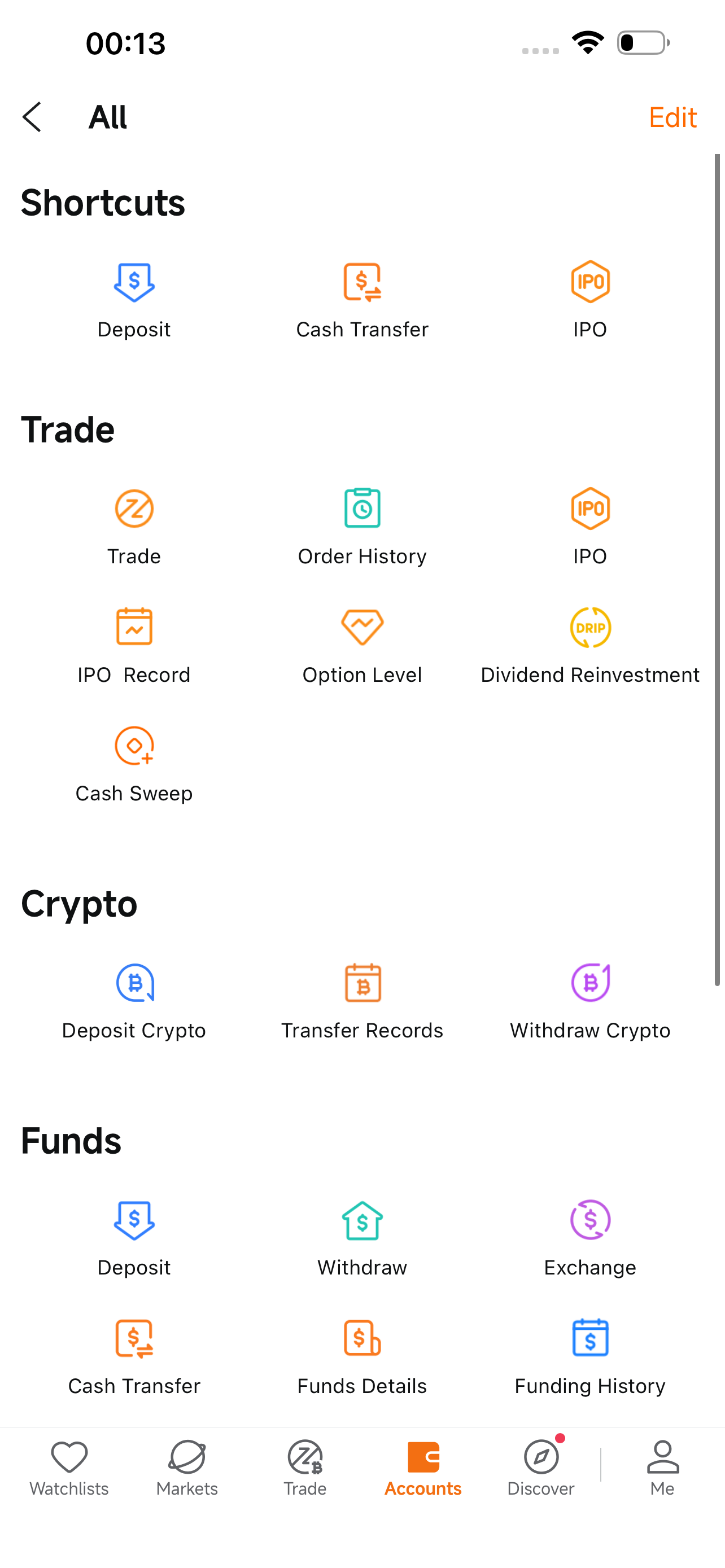
Accounts > All > Crypto > Deposit Crypto
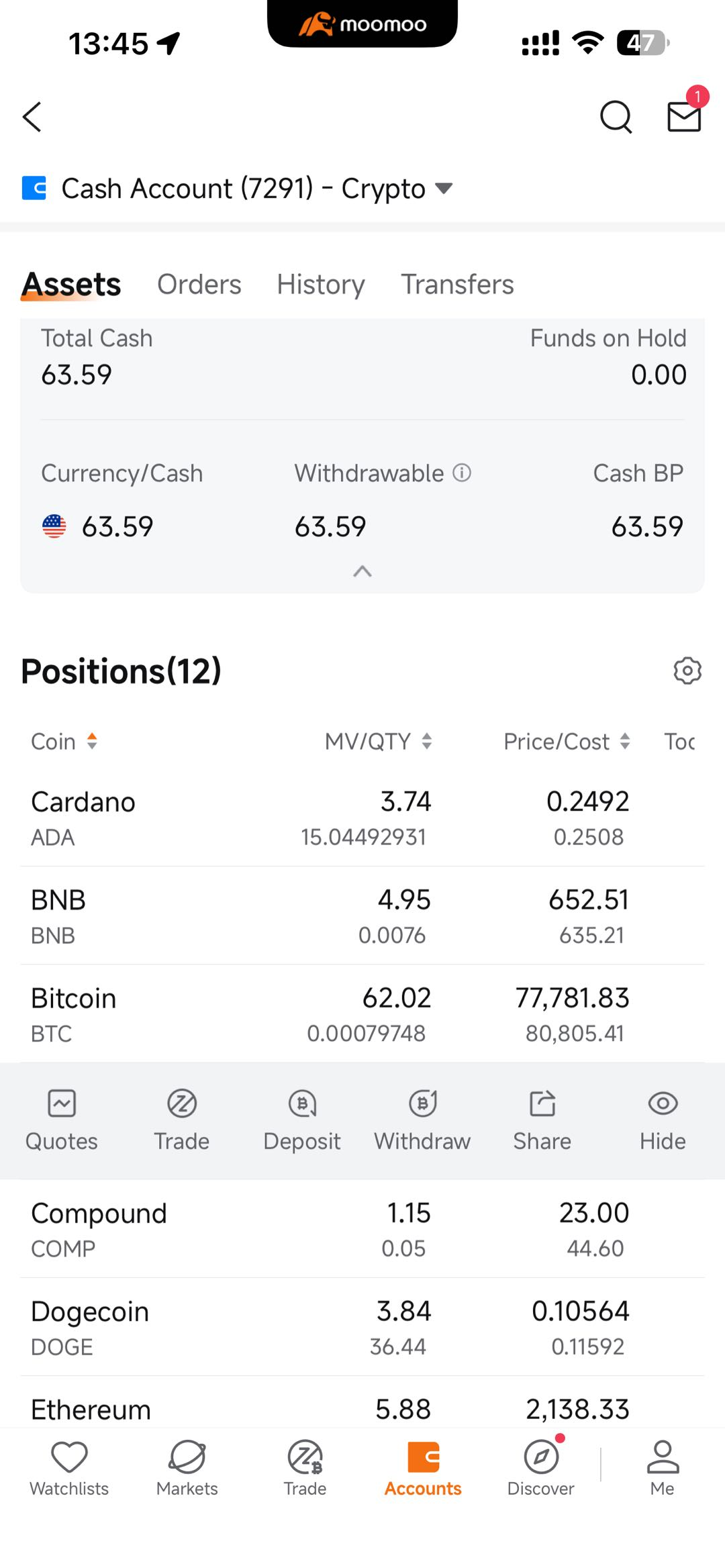
Crypto Account > Tap your holdings > Deposit Crypto
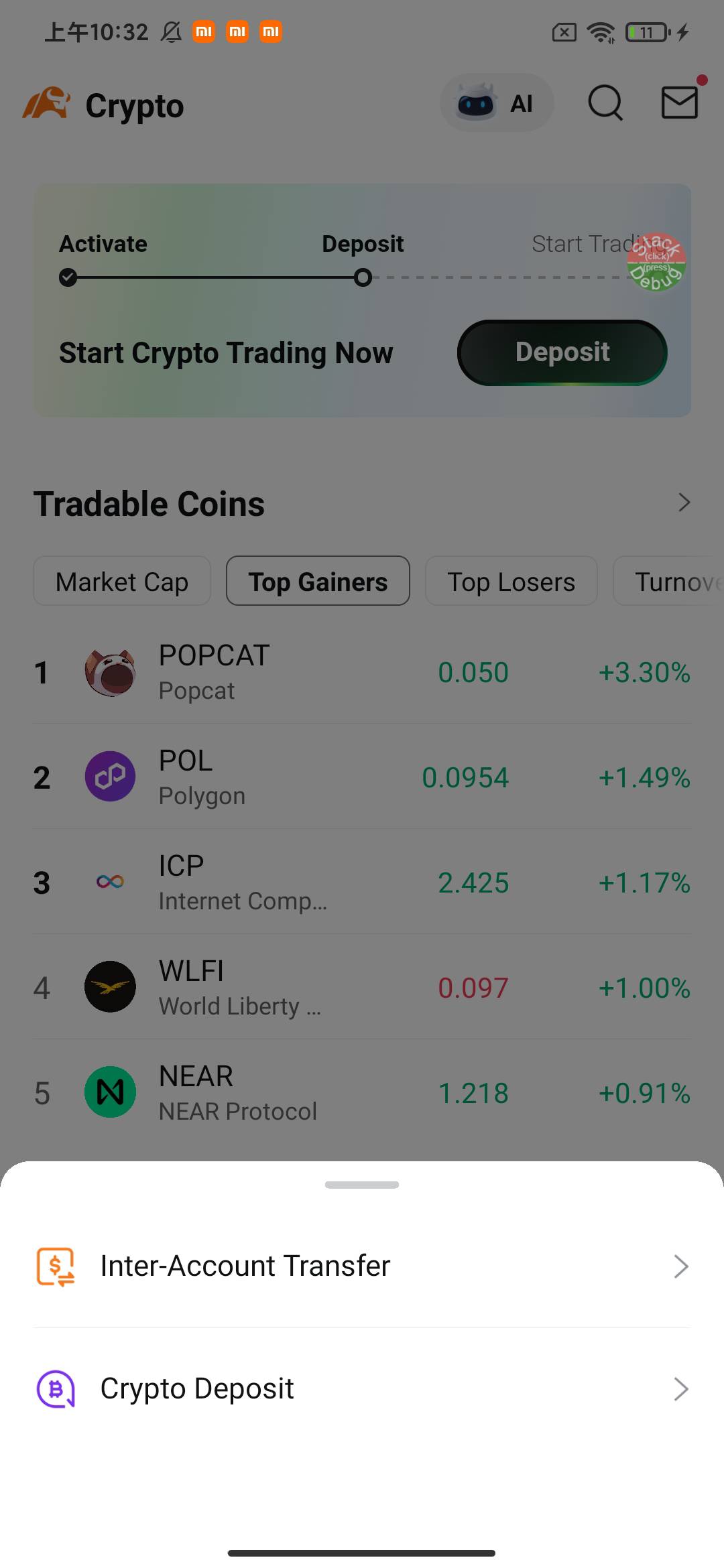
Crypto > Deposit Crypto
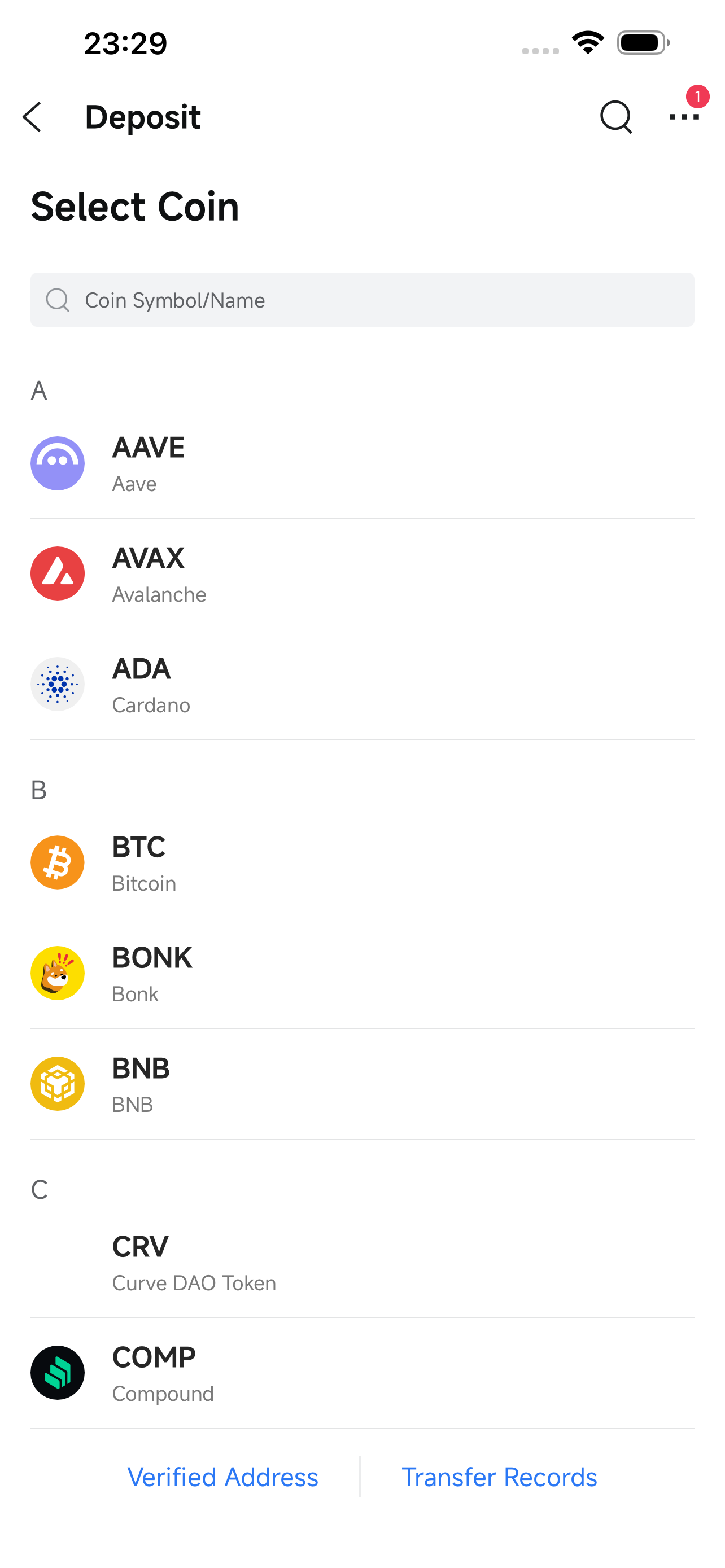
Step 2: Select the cryptocurrency
Choose the cryptocurrency you want to deposit. For all the available cryptocurrencies, refer to What cryptocurrencies does MCI support for deposits and withdrawals?
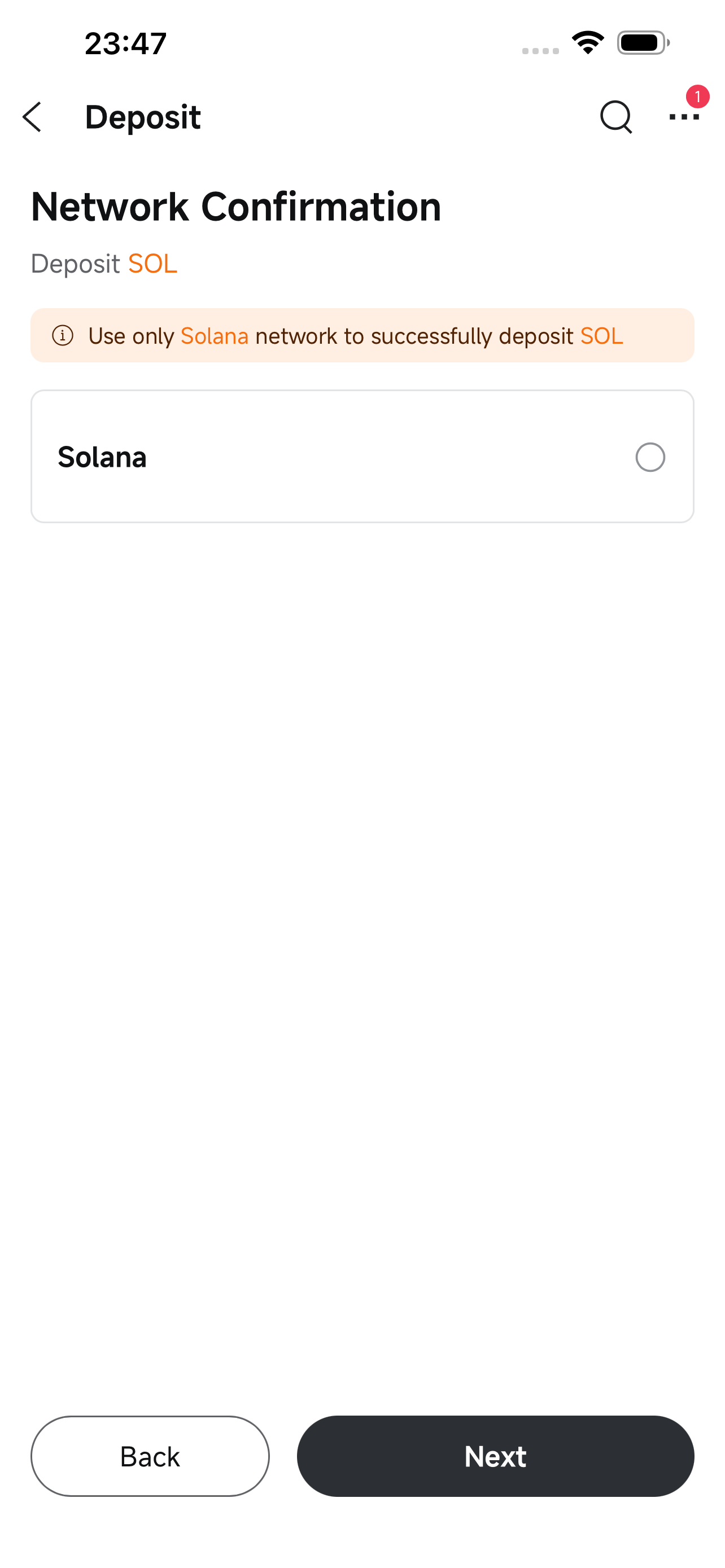
Step 3: Select the network
Choose the blockchain network that matches the platform you're sending from.
⚠️ Both the cryptocurrency and network must exactly match. Selecting the wrong network may result in permanent loss of funds.
For example, BTC uses the Bitcoin network, ETH uses the Ethereum network, and SOL uses the Solana network.
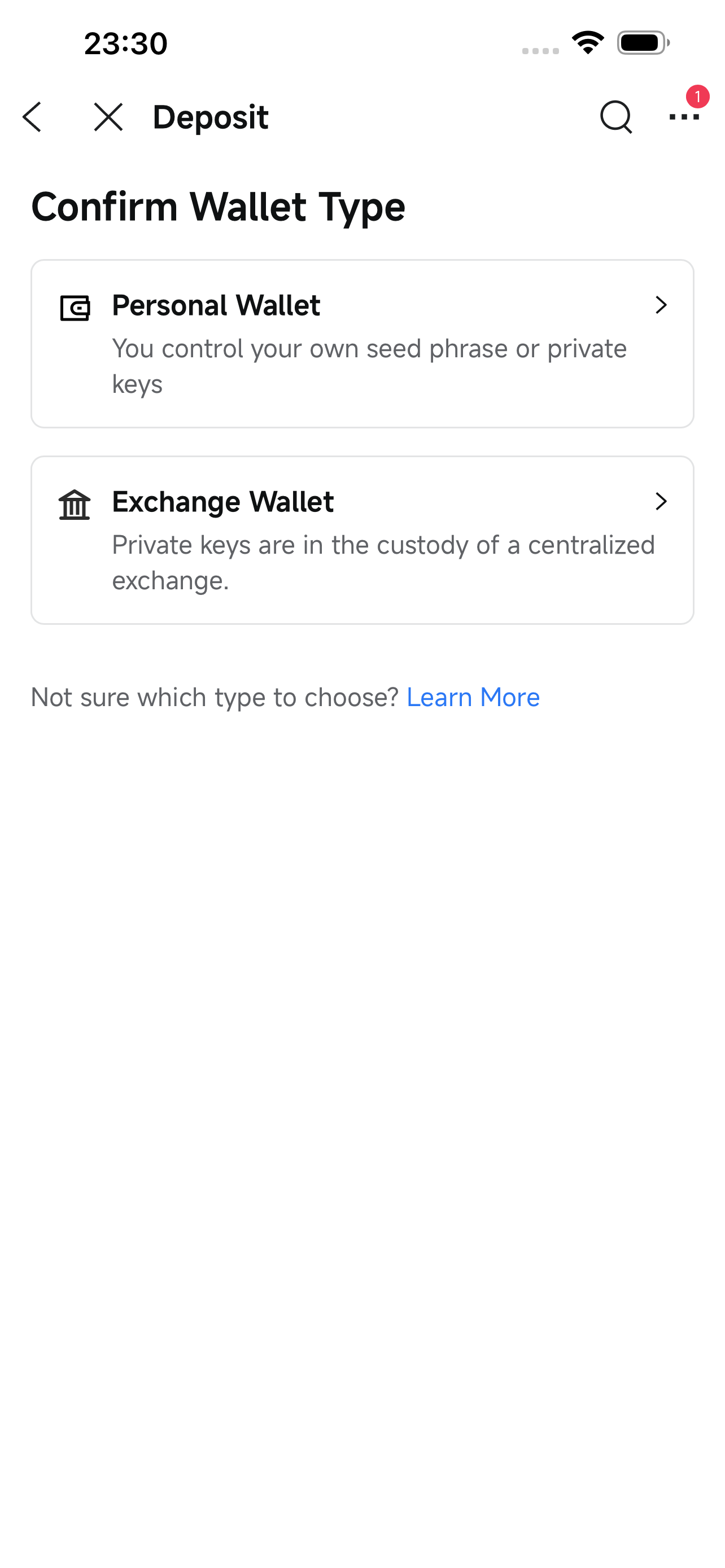
Step 4: Select the wallet type
MCI supports deposits from personal wallets and exchange wallets. Select the type that matches your wallet. Choosing the wrong type may cause the deposit to fail.
📌 The descriptions below are for reference only. If you're unsure about your wallet type, contact your wallet provider.
|
Wallet Type |
Description |
Example |
|
Personal Wallet |
You control the private keys or recovery phrases. Also known as a self-custodial or Web3 wallet. |
MetaMask, Ledger, Trezor, hardware wallets |
|
Exchange Wallet |
Hosted by a centralized exchange. You don't control private keys. |
Coinbase, Kraken, Bybit accounts |
💡Some platforms offer both types of services. For example, Binance and OKX each provide a self-custodial wallet (Binance Web3 Wallet, OKX Web3 Wallet) as well as an exchange wallet through their trading platforms.
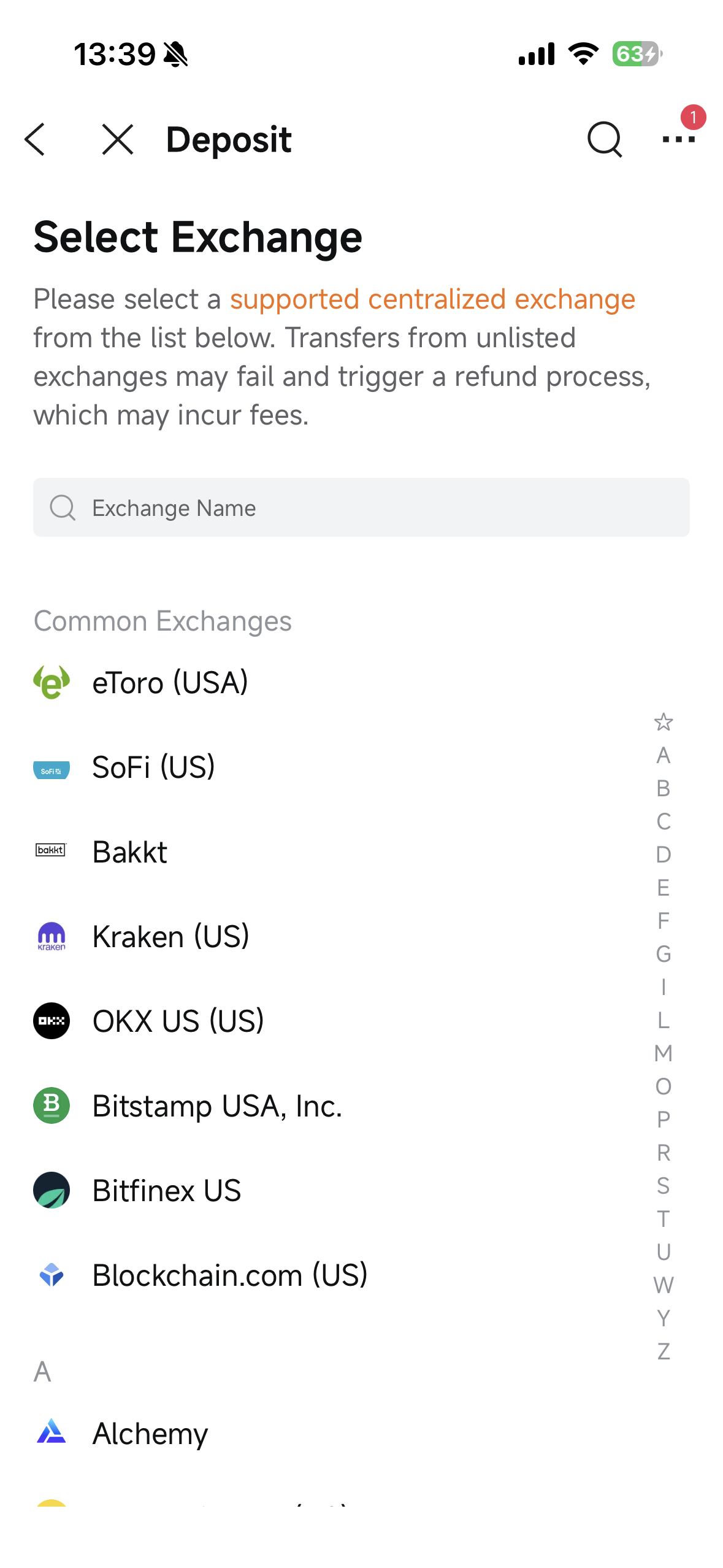
Step 5A (Exchange Wallet): Select the source exchange
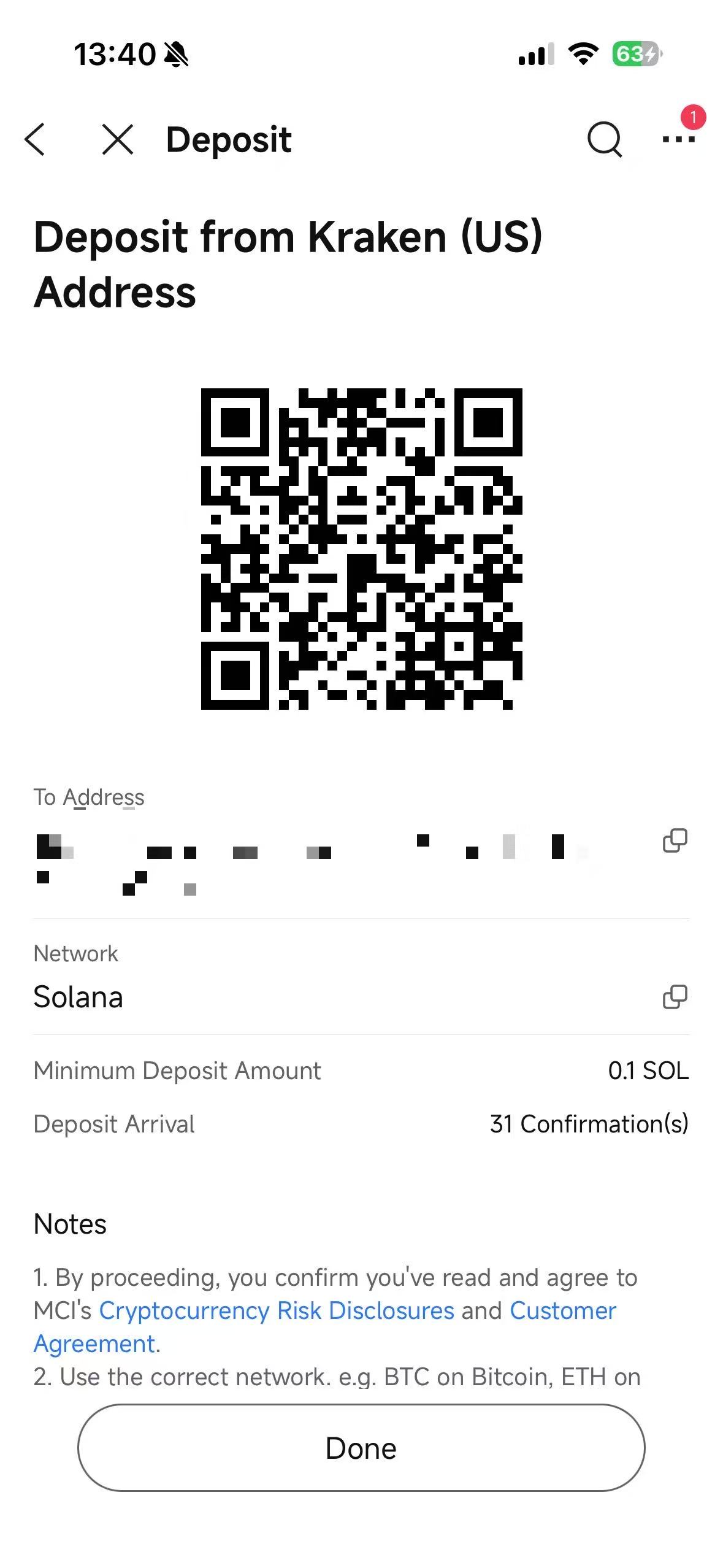
From the list of available exchanges, select the one you are sending from. You will then see a deposit address and a QR code.
⚠️ To comply with Travel Rule requirements, please deposit only from the exchanges listed on the page. Deposits from other exchanges may fail and trigger a refund process, which could incur fees.
Step 5B (Personal Wallet): Complete the wallet address verification
To comply with regulatory requirements and protect your assets, you are required to verify wallet ownership when depositing from a personal wallet.
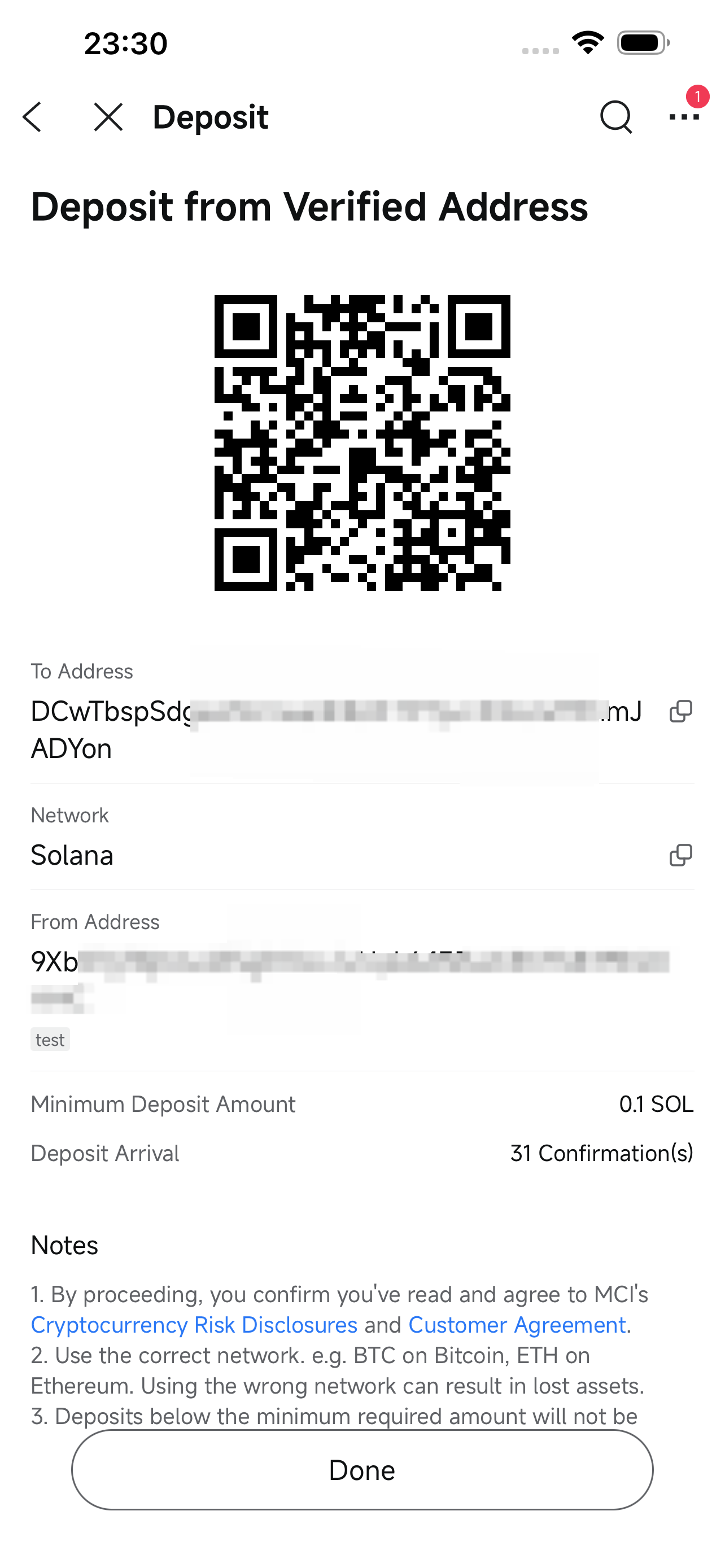
If you have already verified an address on the corresponding network, you can select it directly to proceed with the deposit.
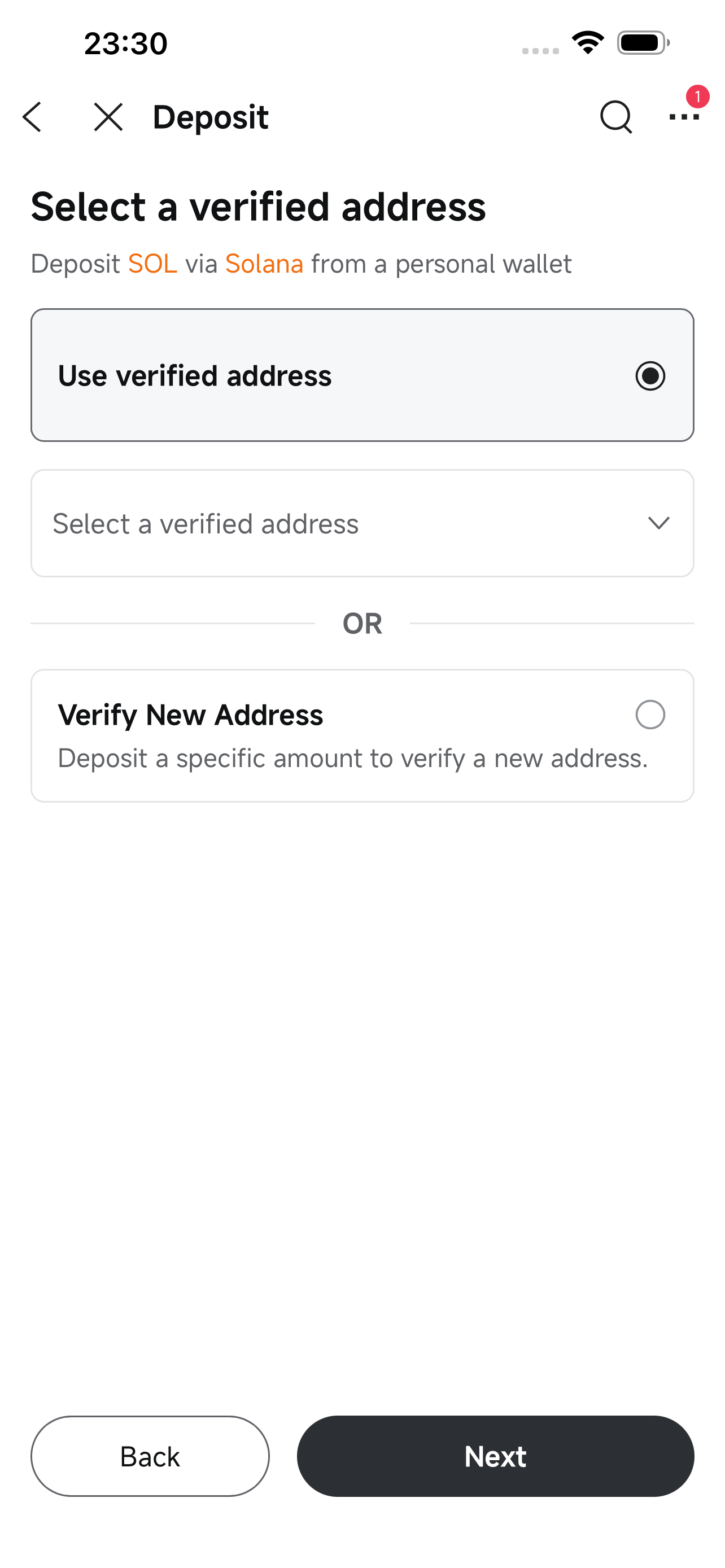
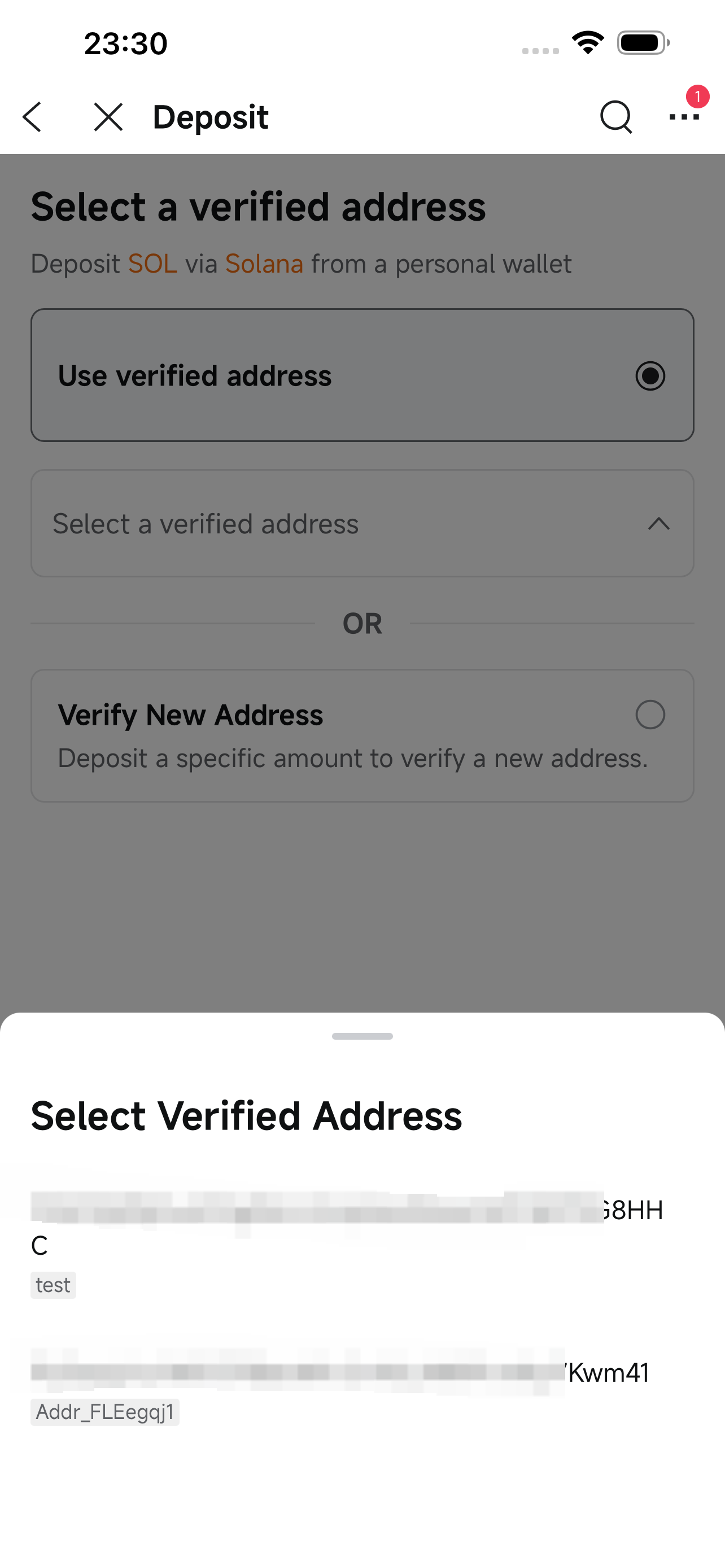
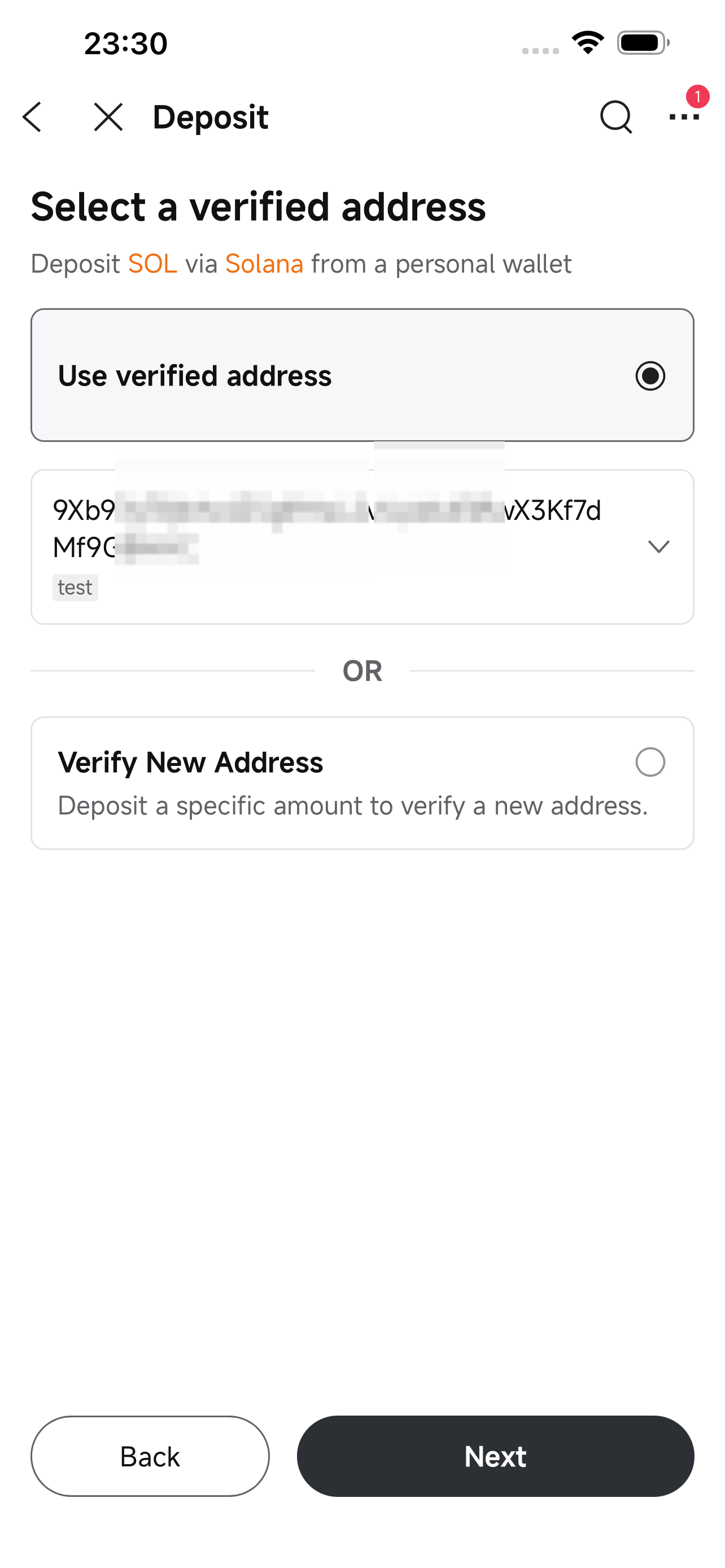
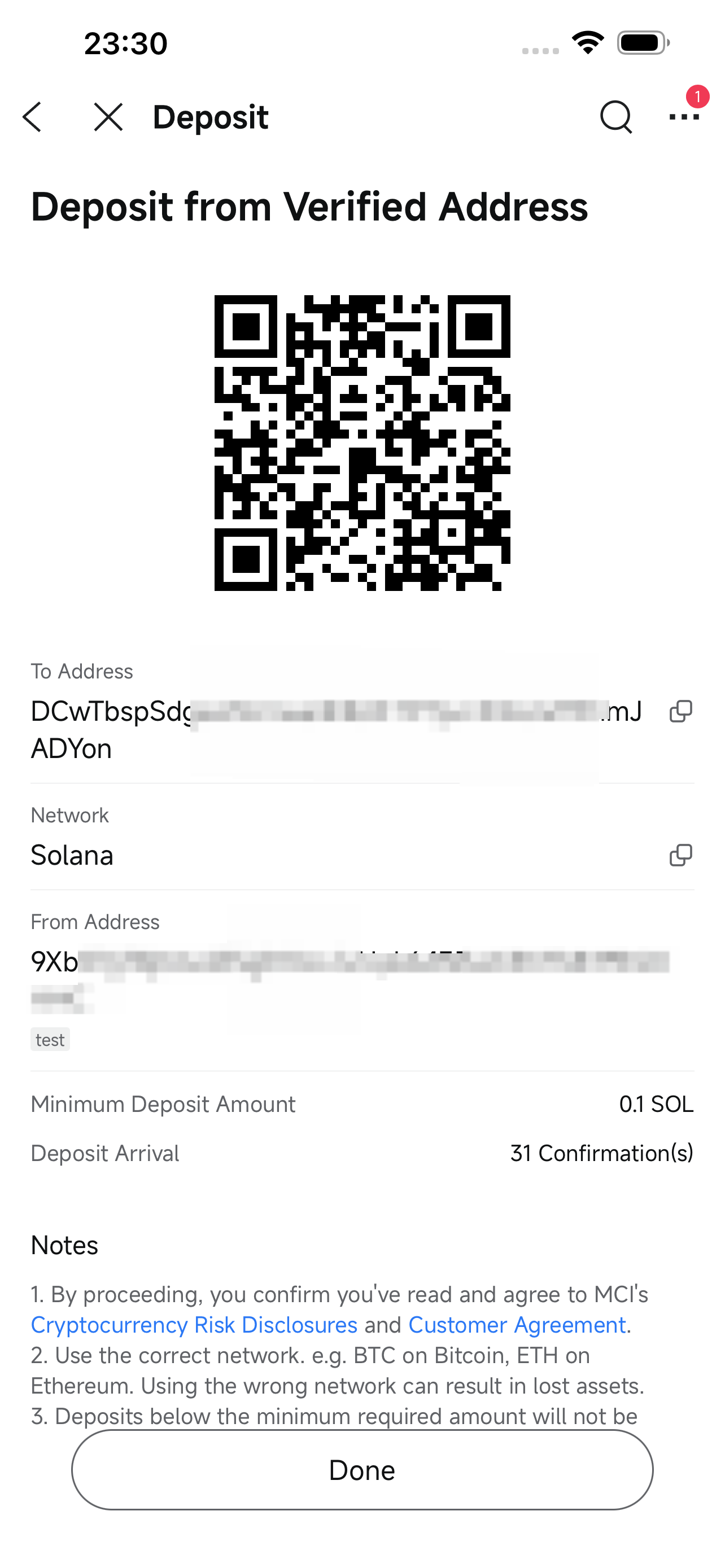
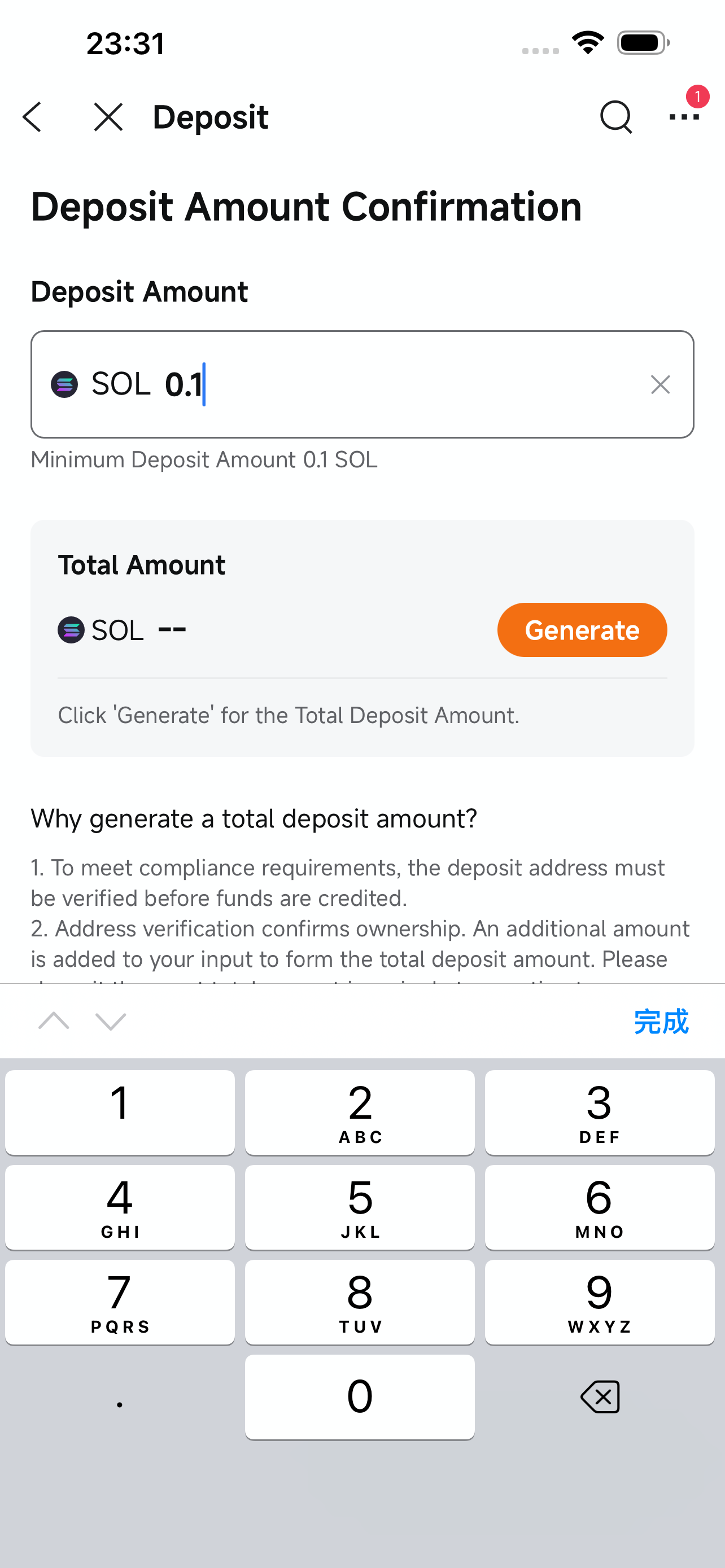
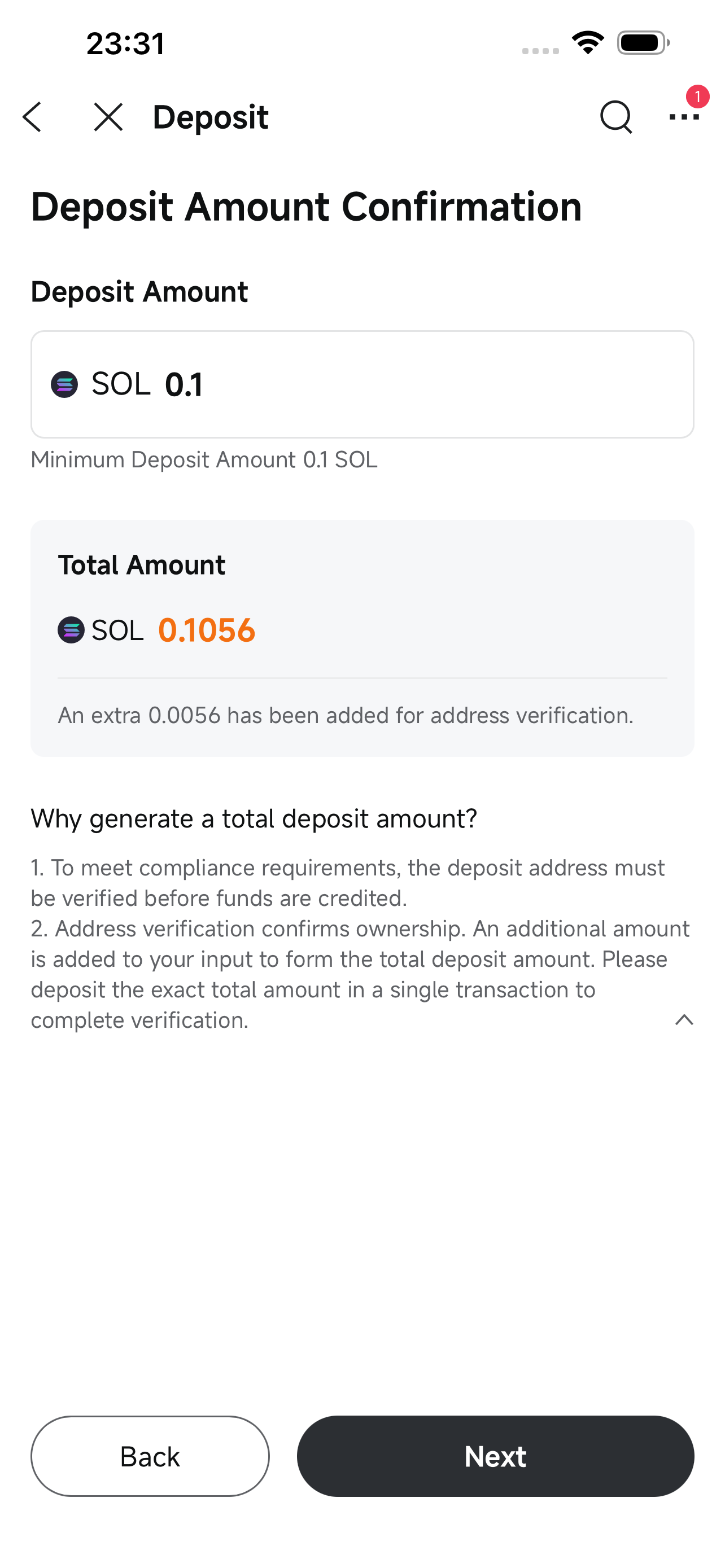
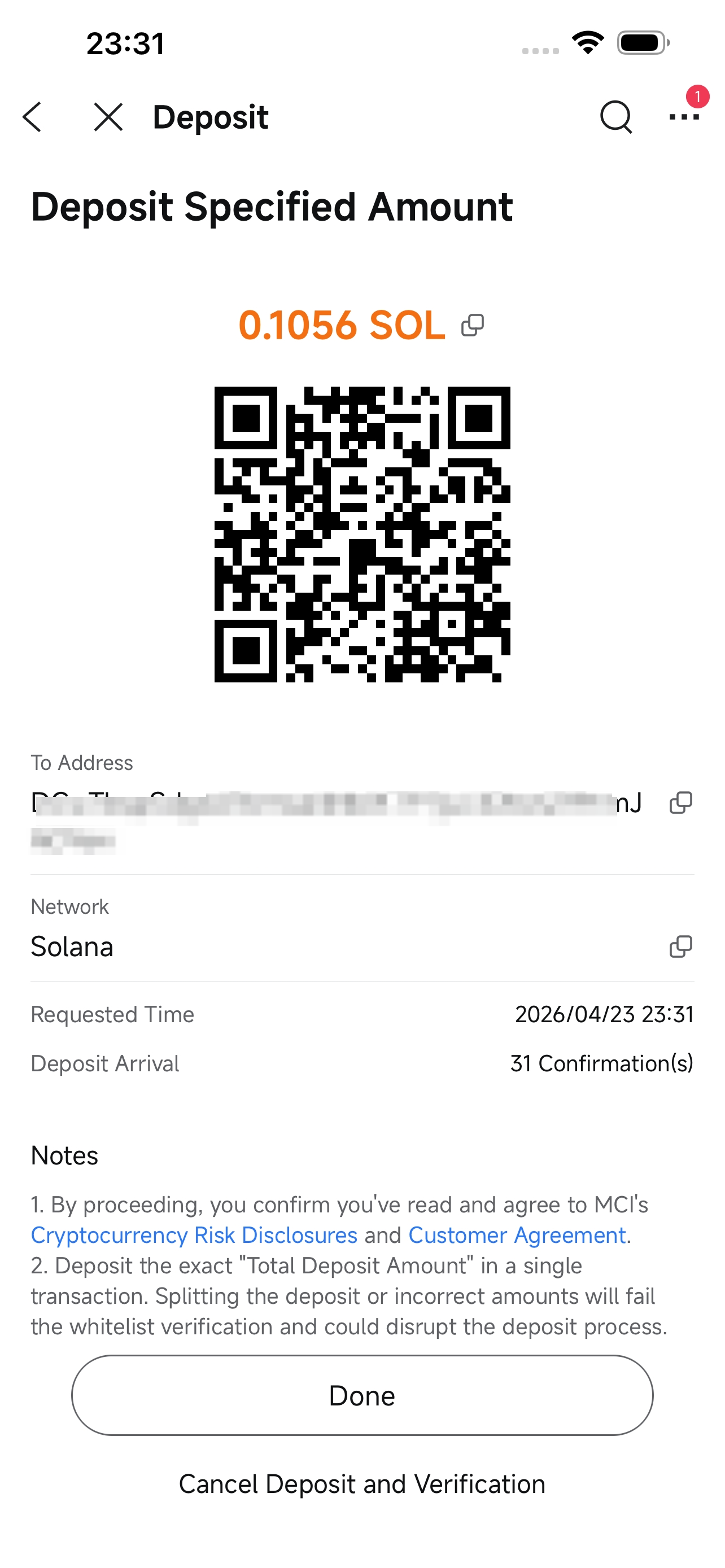
If you need to verify a new address, follow the instructions shown on the page. A specific deposit amount will be generated, and you will need to complete an on-chain transfer of that exact amount to finish verification. For detailed steps, refer to How to complete wallet address verification.
Step 6: Get the deposit address and complete the transfer
You'll see a QR code and the full deposit address. Copy the address and paste it into the withdrawal address field on your source platform to complete the transfer.
⚠️ Make sure the deposit amount meets the minimum deposit requirement. Transfers below the minimum will not be credited and cannot be refunded. For minimum deposit amounts by cryptocurrency, refer to What cryptocurrencies does MCI support for deposits and withdrawals?
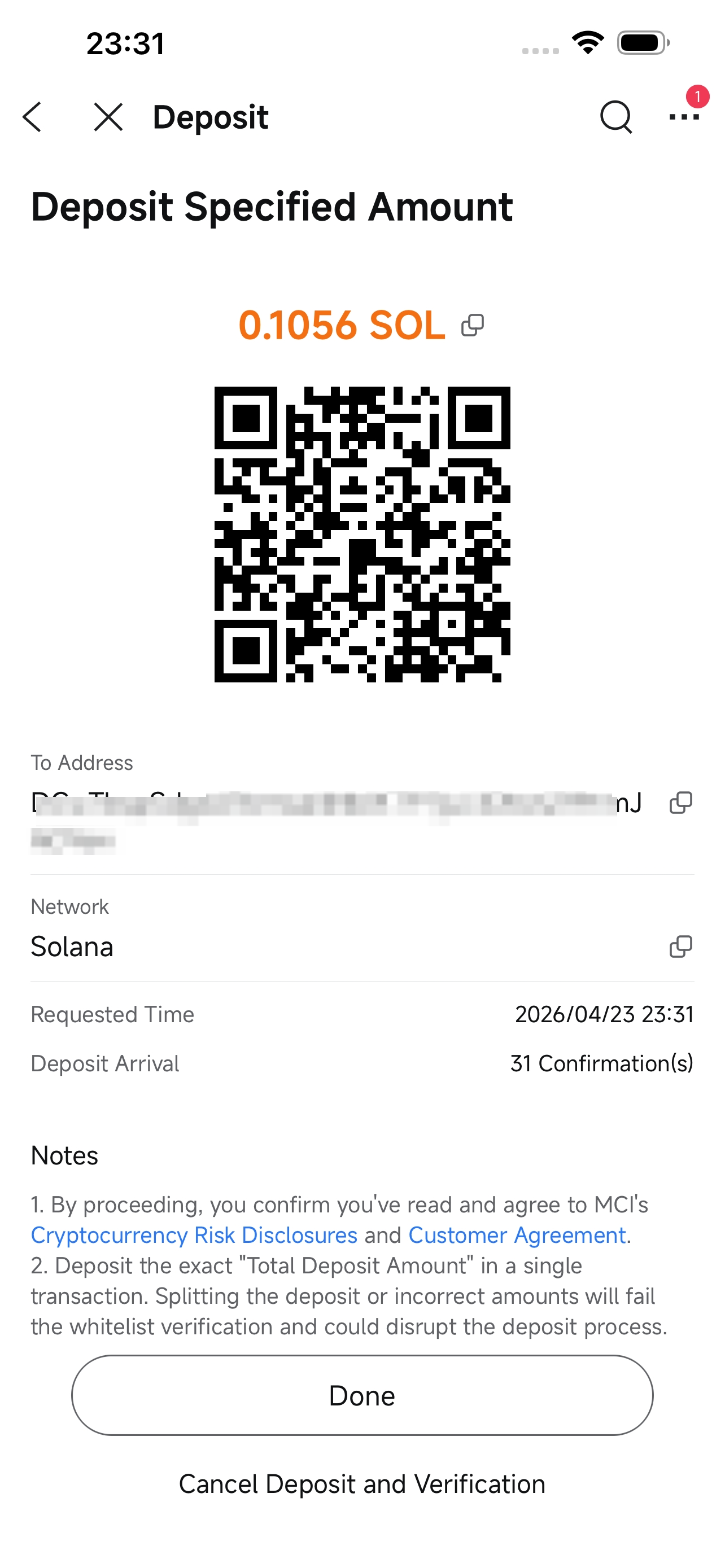
Deposits are processed once the required number of blockchain confirmations is reached. Funds typically arrive within 1 hour. If a compliance review is required, processing will take at least 1 business day.
Once an on-chain transfer is detected, a deposit order will be created automatically. You can view it in the app through:
Accounts > More > Crypto > Transfer Records > Deposit
Crypto Account > More > Transfer Records > Deposit
In-app notification of your deposit
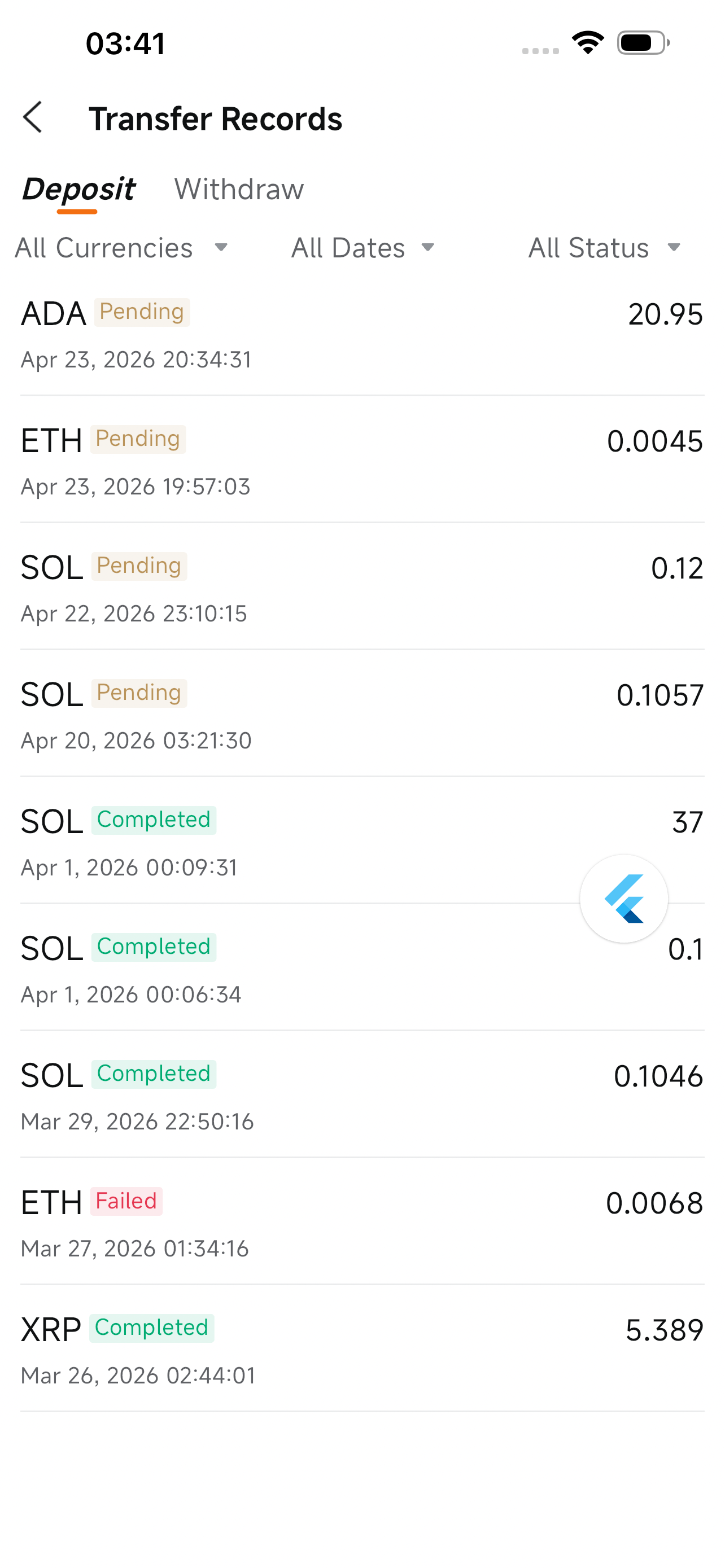
Creating a deposit order does not mean the funds have been credited. Check the deposit details page for any pending action items and follow the prompts to ensure your deposit is credited successfully.
Note: Each deposit requires you to enter a cost basis, which is used solely for P&L analysis. This information is not reported to the IRS at year-end and will not appear on your 1099-B form.
Please update the app to version 16.13.24908 or above.
If you already have a brokerage account, follow these steps to activate crypto trading:
1. Open the app, enter a crypto symbol (e.g., BTC) in the search bar, go to the details page, and tap the Trade button at the bottom.
2. On the trading permissions page, select Crypto, then follow the prompts to sign the tax form and review the risk disclosures to activate your crypto account.

