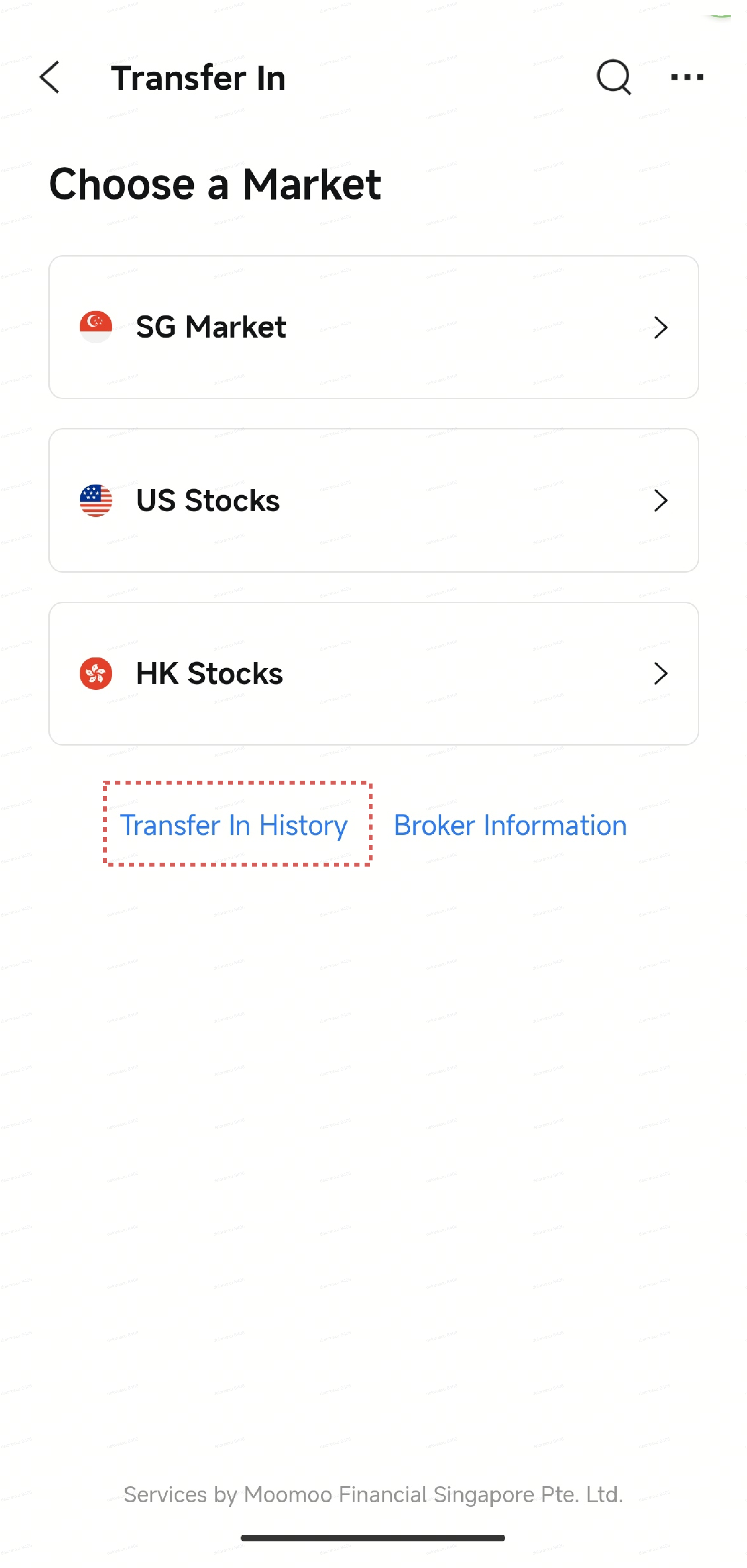
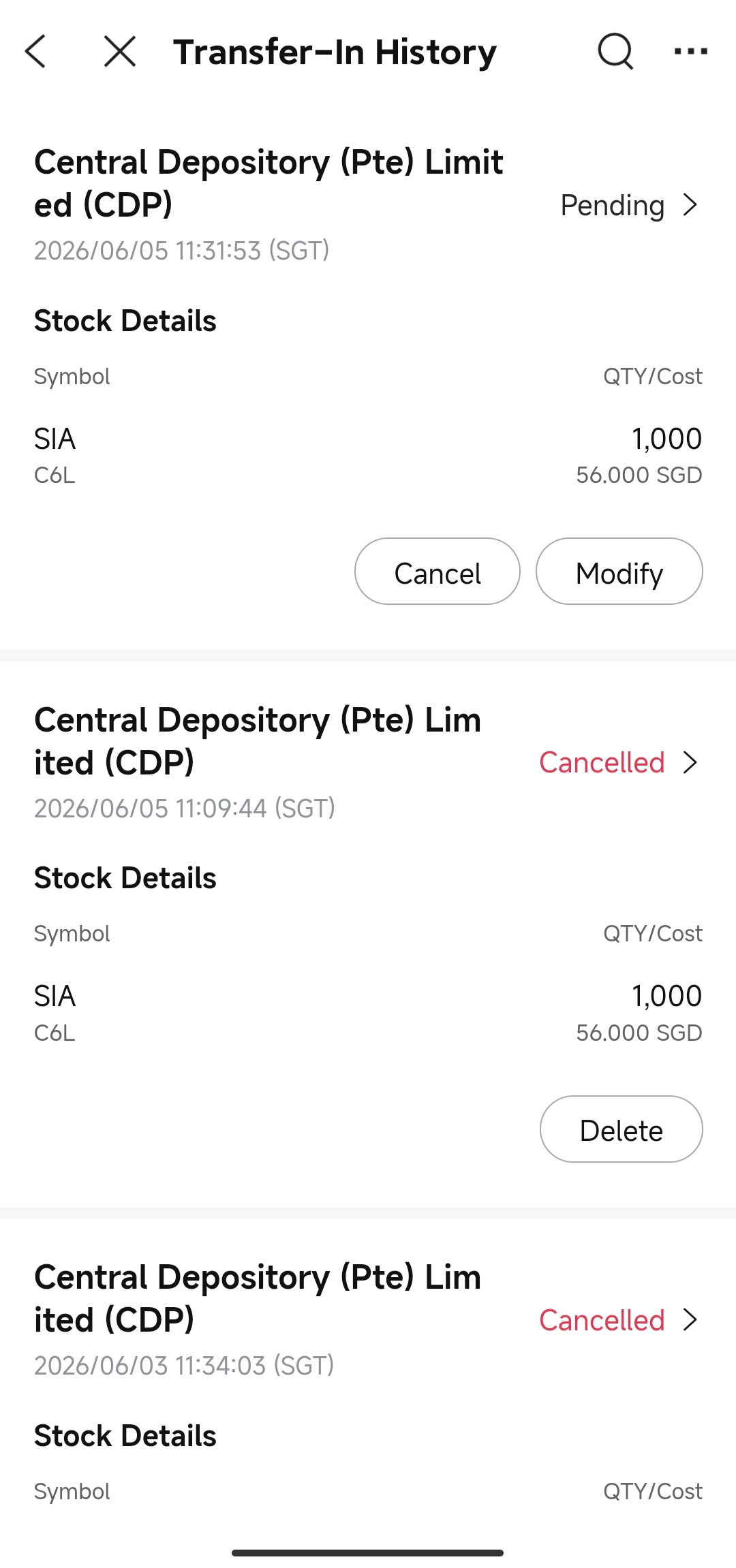
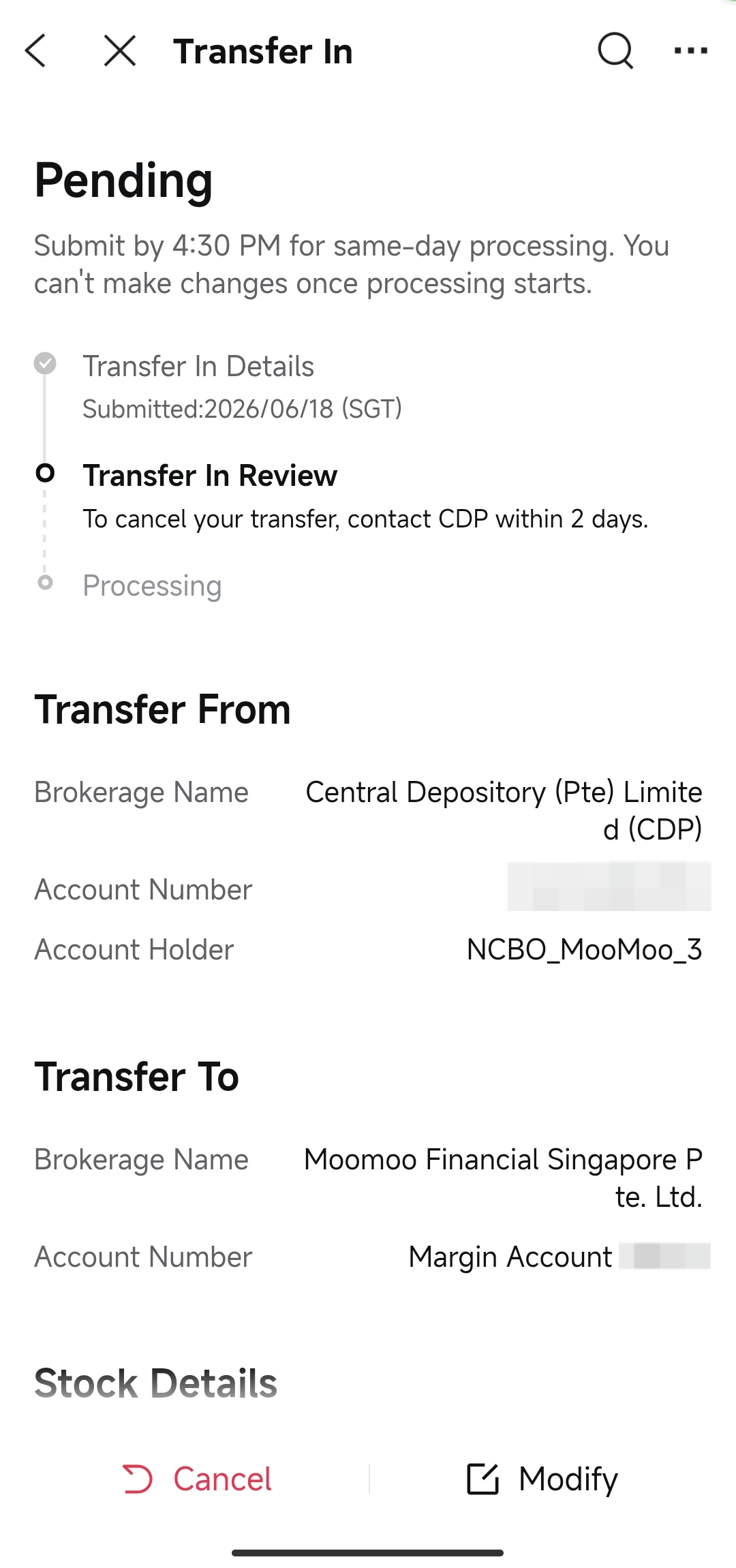
Initiating Your Transfer
Step 1: Initiate a Transfer in the Moomoo App
Method 1 (Recommended):
-
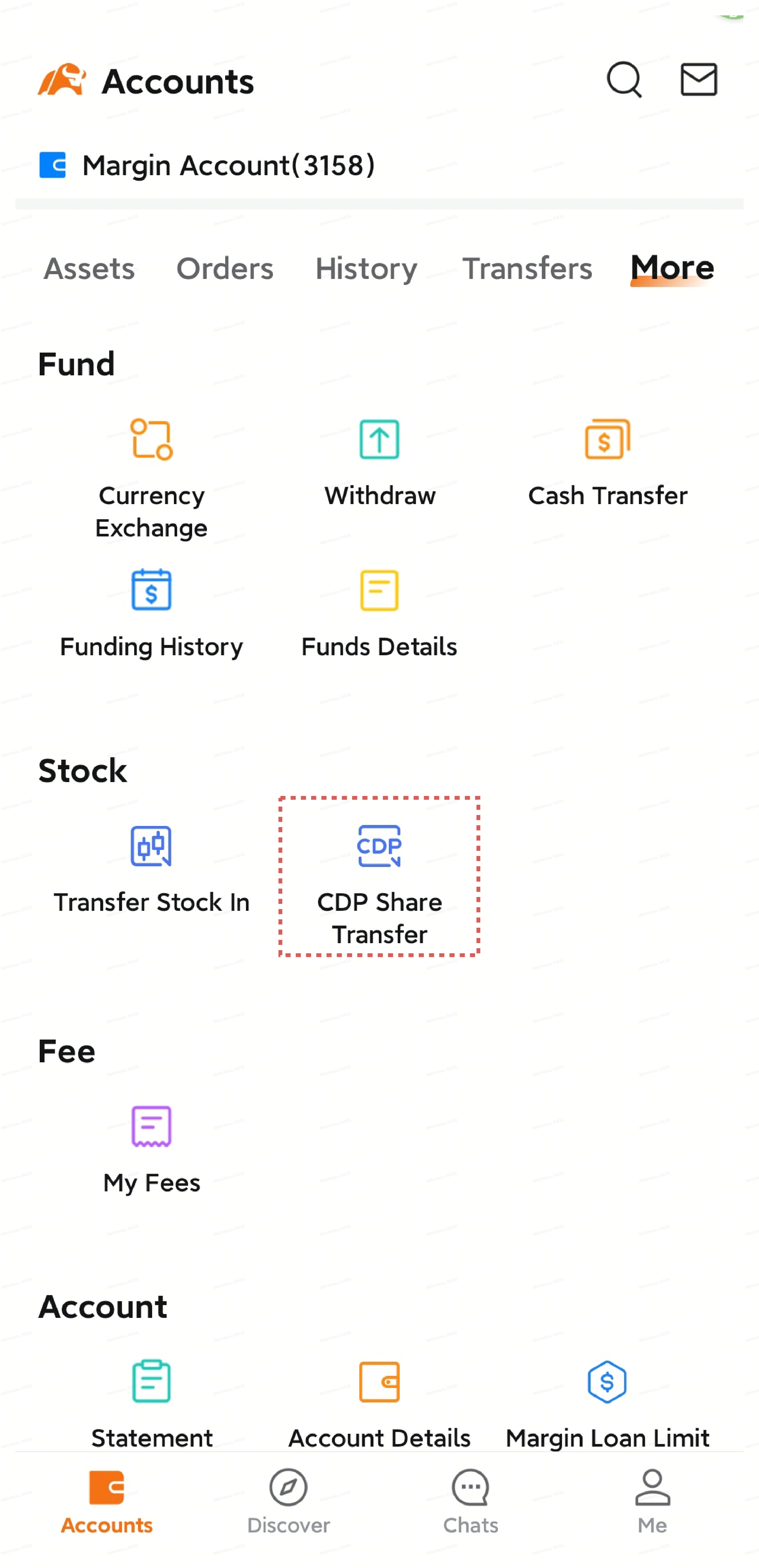
Open the moomoo app and tap Accounts.
-
Tap More, then select CDP Share Transfer.
-
CDP will be automatically selected as your broker.
Method 2:
-
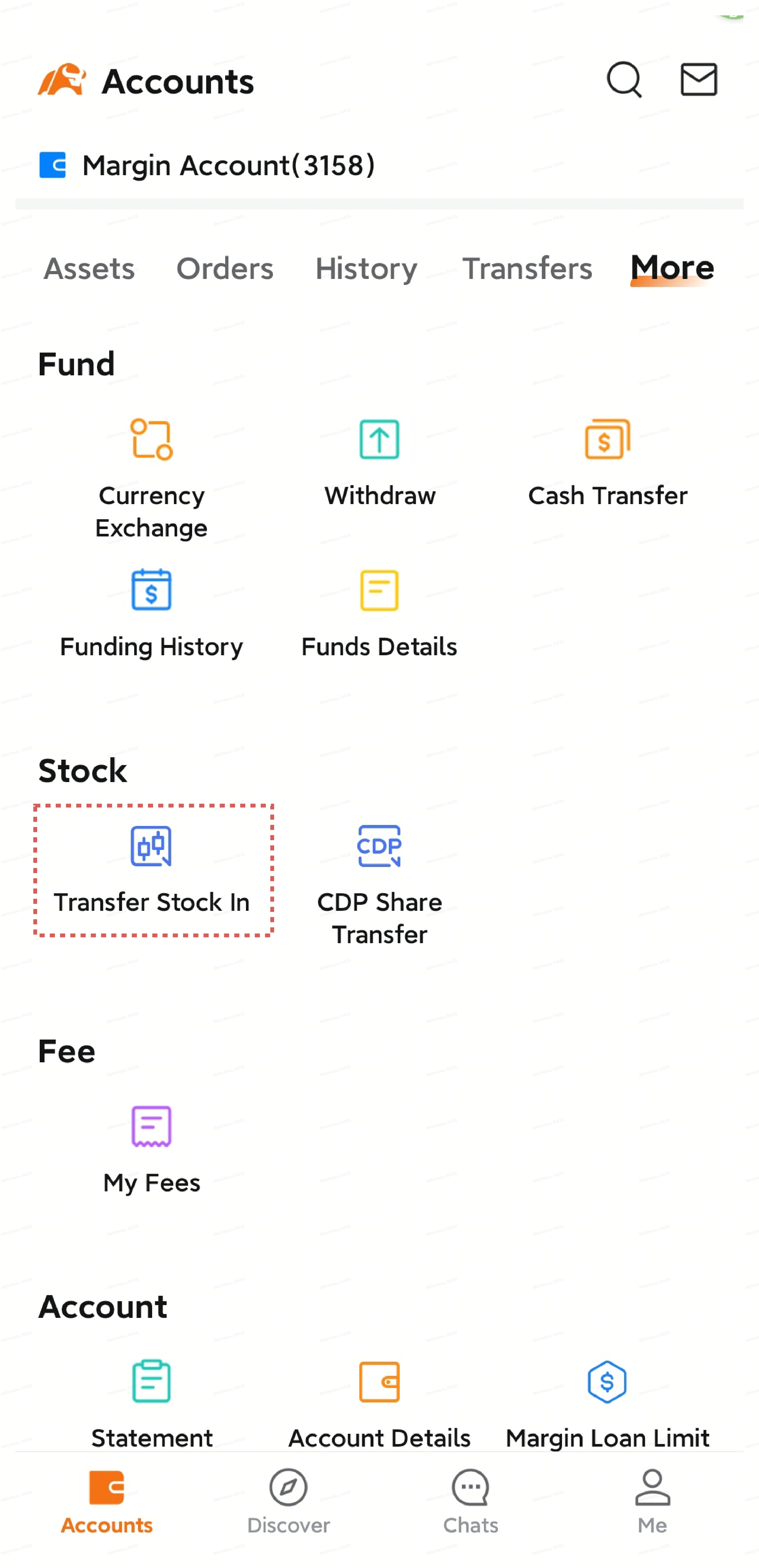
Open the moomoo app and tap Accounts.
-
Tap More, then select Transfer Stock In.
-
Select SG Market.
-
Select Central Depository (Pte) Limited (CDP) to transfer from.
Step 2: Enter Transferring Account Details
-
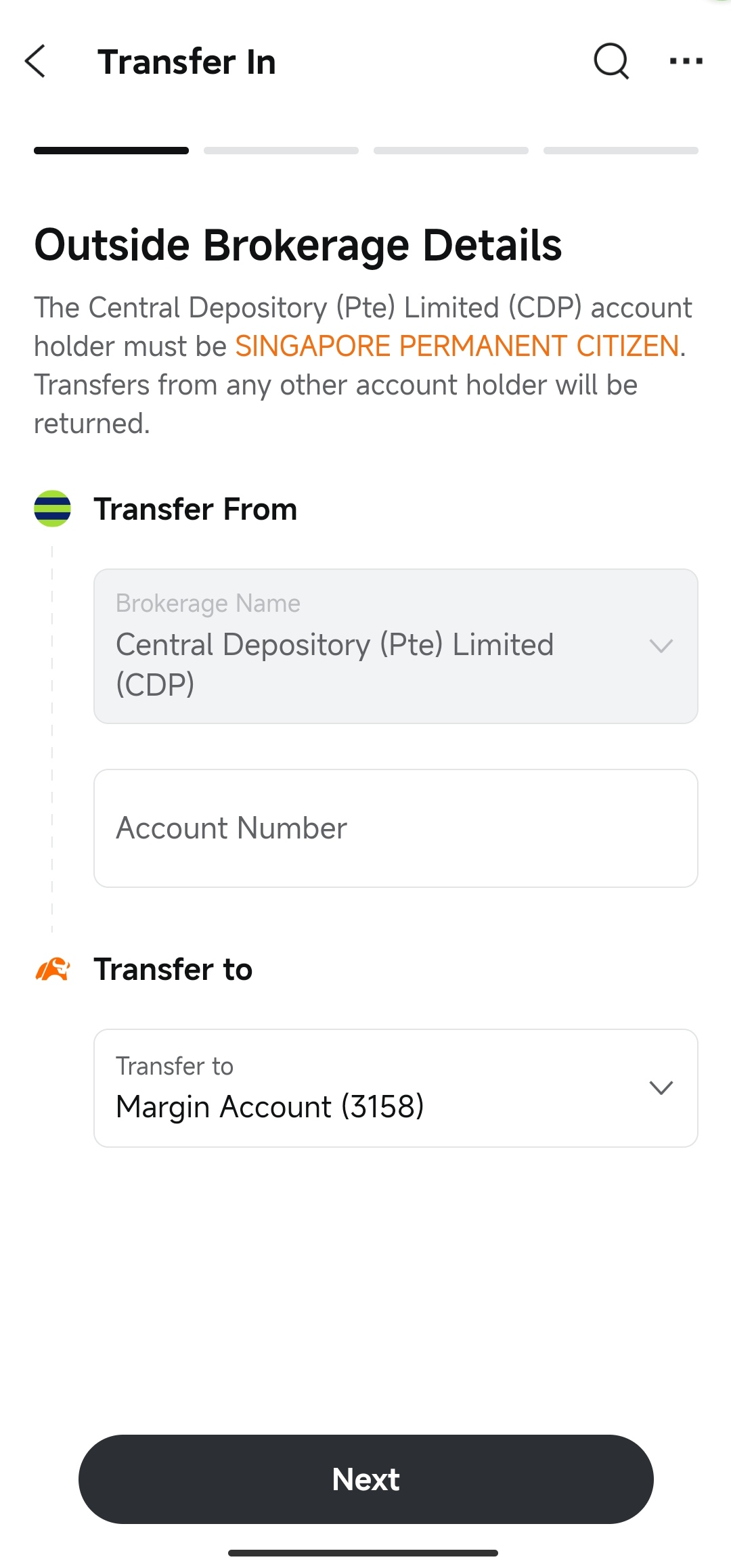
Transfer From: Central Depository (Pte) Limited (CDP) will be automatically selected if you used Method 1.
-
Account Number: Enter your 12-digit CDP account number (starting with 1681).
-
Transfer to: Select your receiving account on moomoo (e.g., Universal Account).
-
Tap Next.
Tip: You can find your CDP account number on your CDP statement. It is a 12-digit number starting with 1681.
Step 3: Confirm Personal Information
-
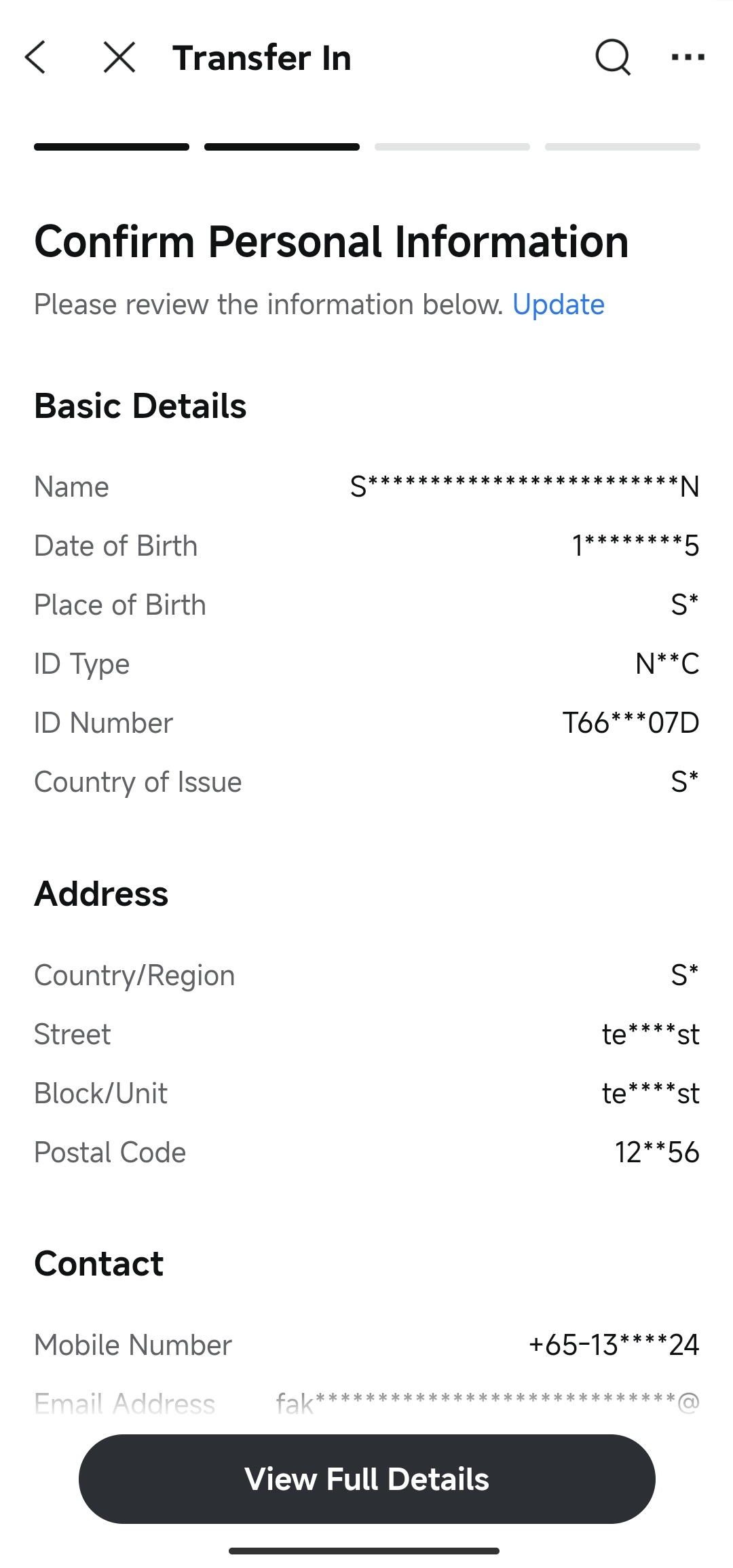
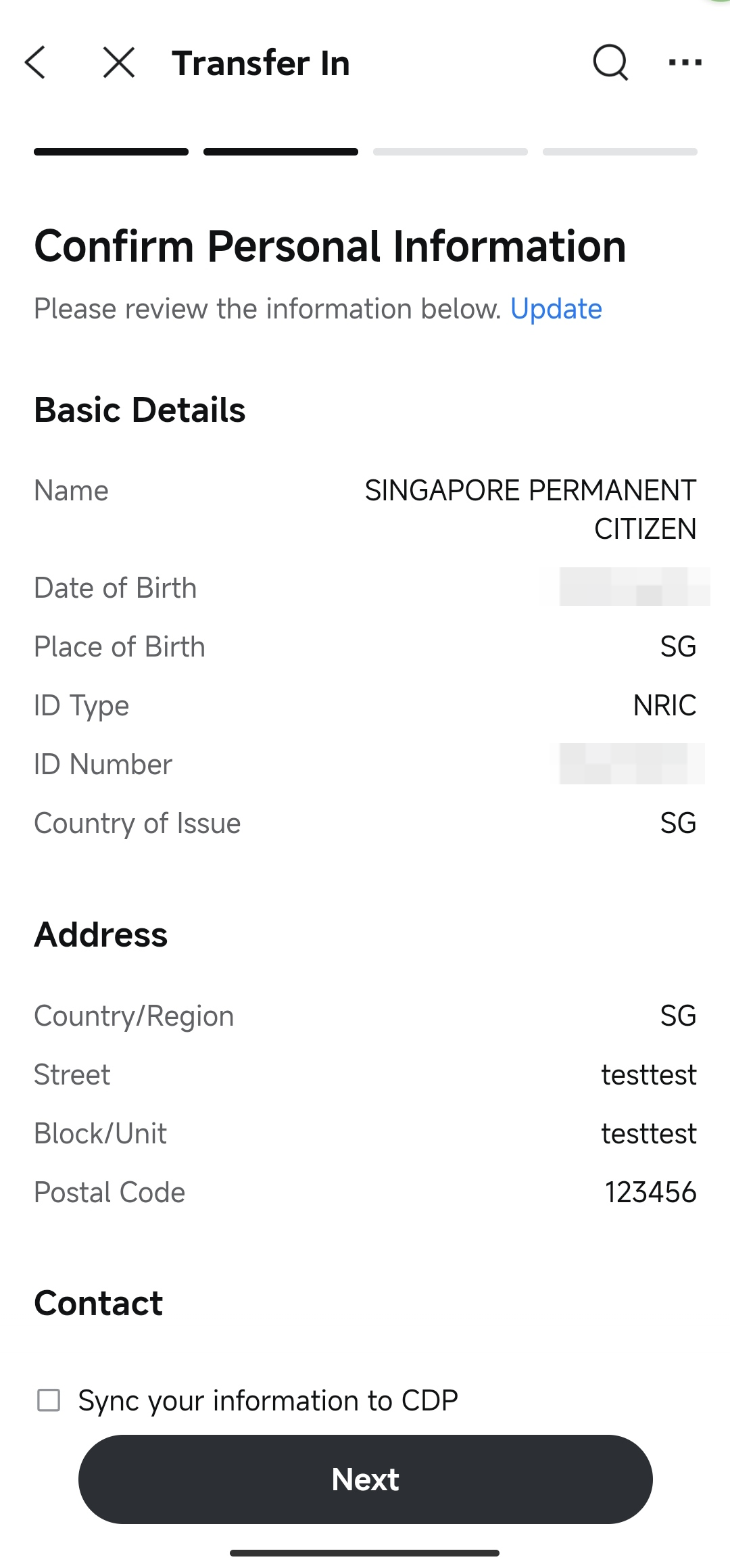
The system will display your account information registered with
Moomoo SG, including your identity, address, and contact details.
-
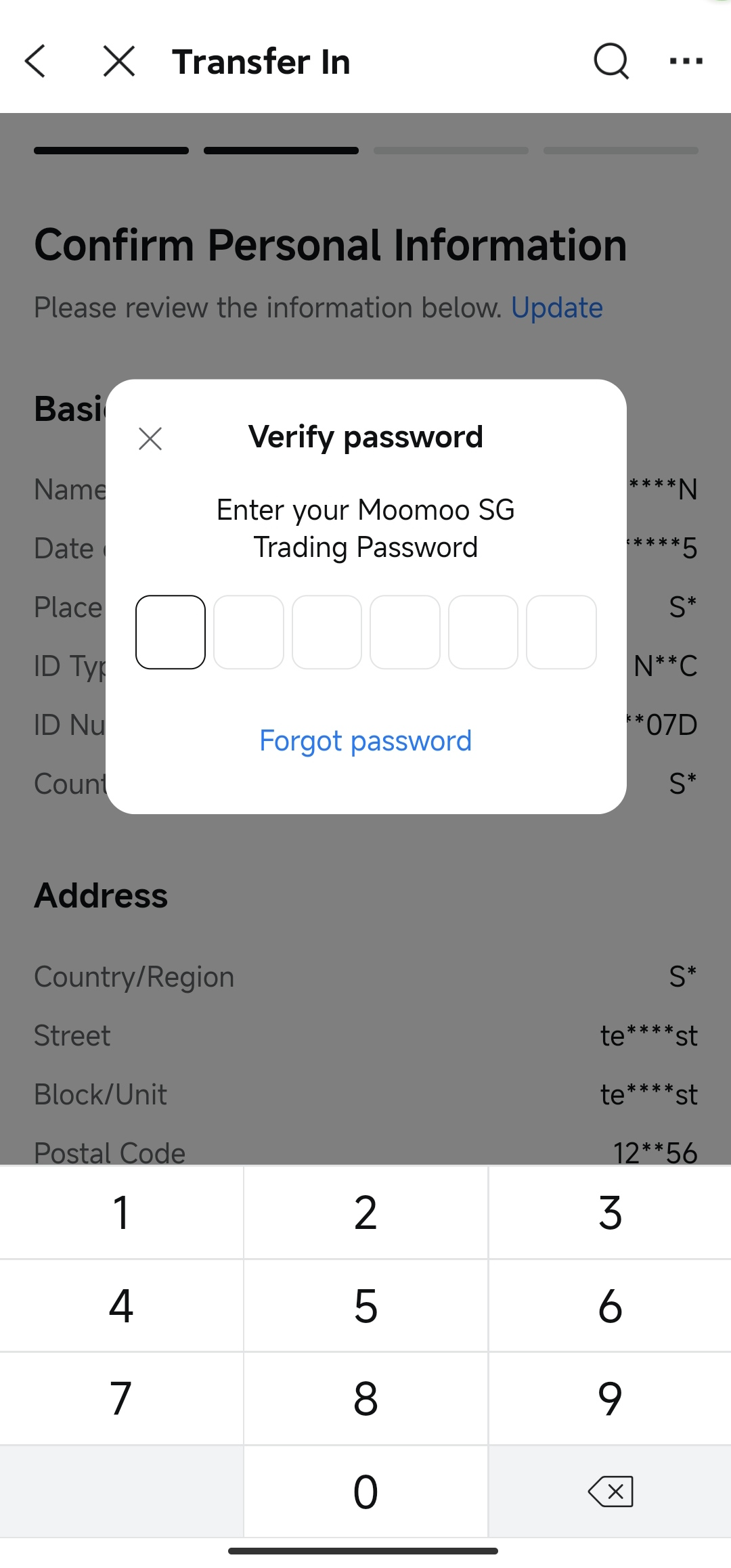
Enter your trading password to view the complete information, then carefully verify that all details are correct.
-
If any information is incorrect, tap Update to make changes before continuing.
-
Optional: Check the box to sync your information to CDP if you wish to update your CDP account with your latest information.
-
Once verified, tap Next.
Step 4: Select Transfer Method
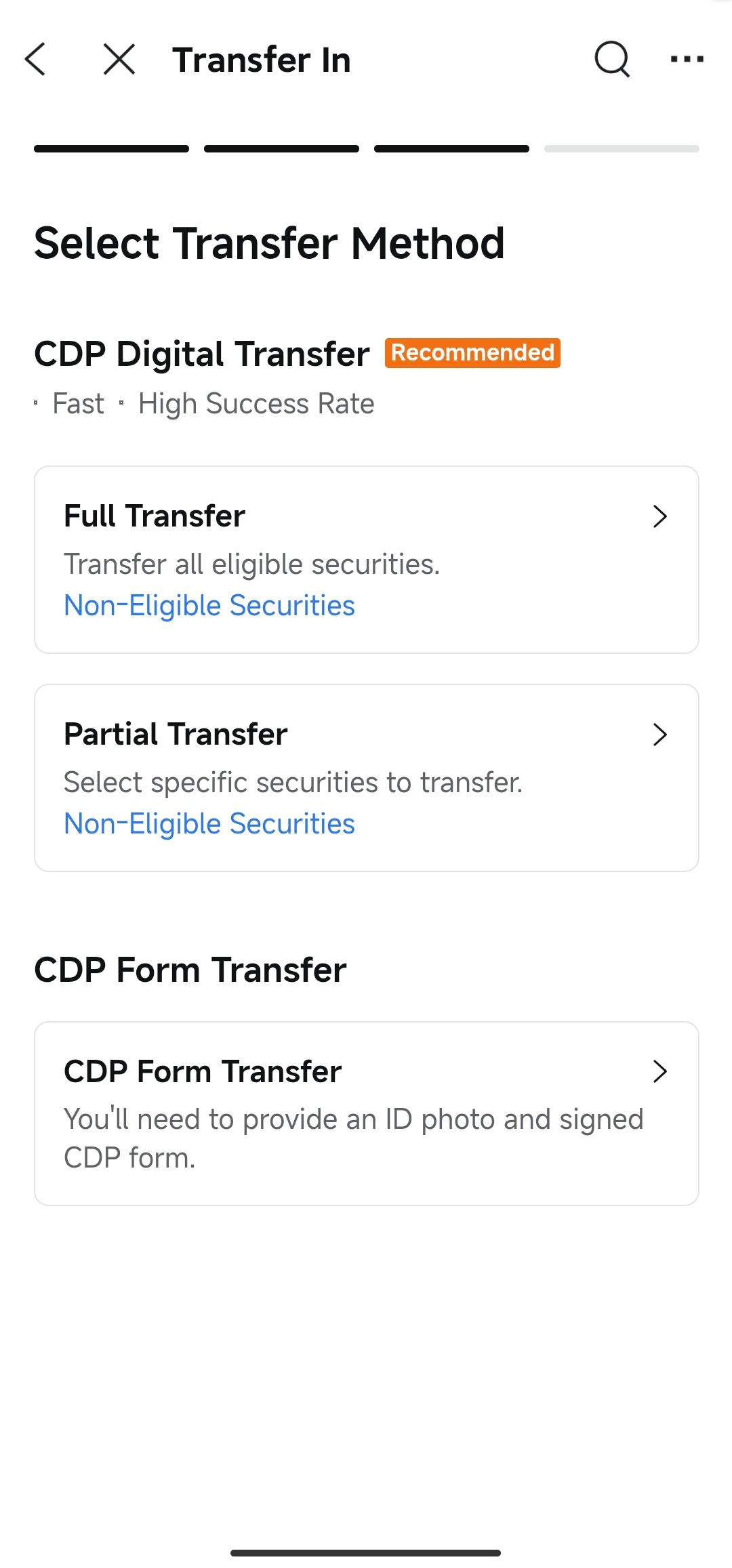
You can choose between two transfer methods:
CDP Digital Transfer (Recommended)
CDP Form Transfer (Traditional Method)
-
Requires you to provide an ID photo and a signed CDP form.
-
Requires manual processing by staff to verify instructions with CDP, which takes longer.
💡 Tip: We strongly recommend using CDP Digital Transfer for a simpler process and a higher success rate.
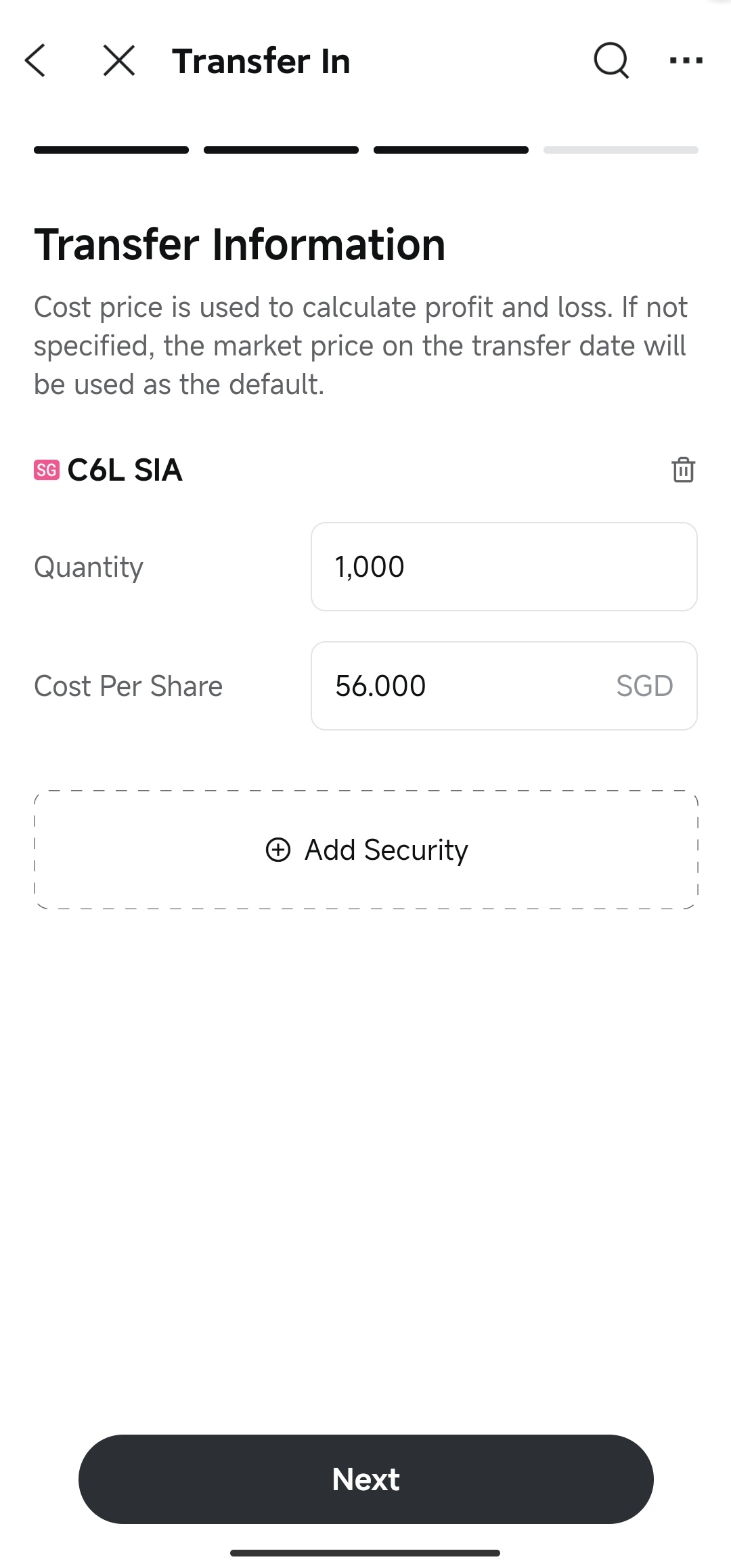
Step 5: Add Securities (Partial Transfer Only)
If you chose Partial Transfer in the previous step, you need to manually add the securities you wish to transfer:
-
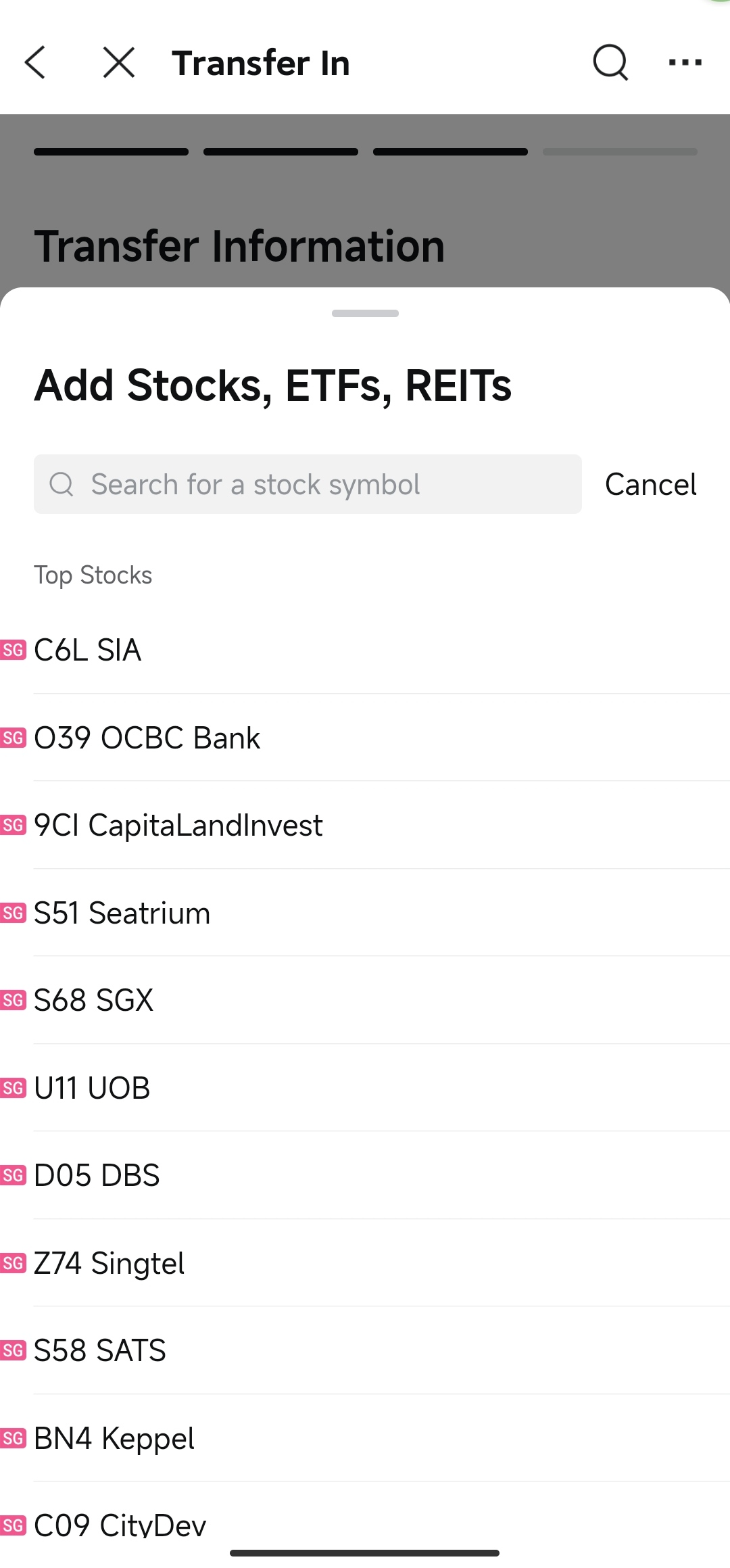
On the Transfer Information page, tap Add Security.
-
Search for the specific securities by name or symbol (Stocks, ETFs, and
REITs are supported).
-
Select a security and enter the following details:
-
Quantity: The number of shares you want to transfer.
-
Cost Per Share (Optional): Used to calculate your holding cost and profit/loss. If left blank, the market price on the transfer date will be used as the default.
-
To add more securities, tap Add Security again.
-
Once you have added all desired securities, tap Next.
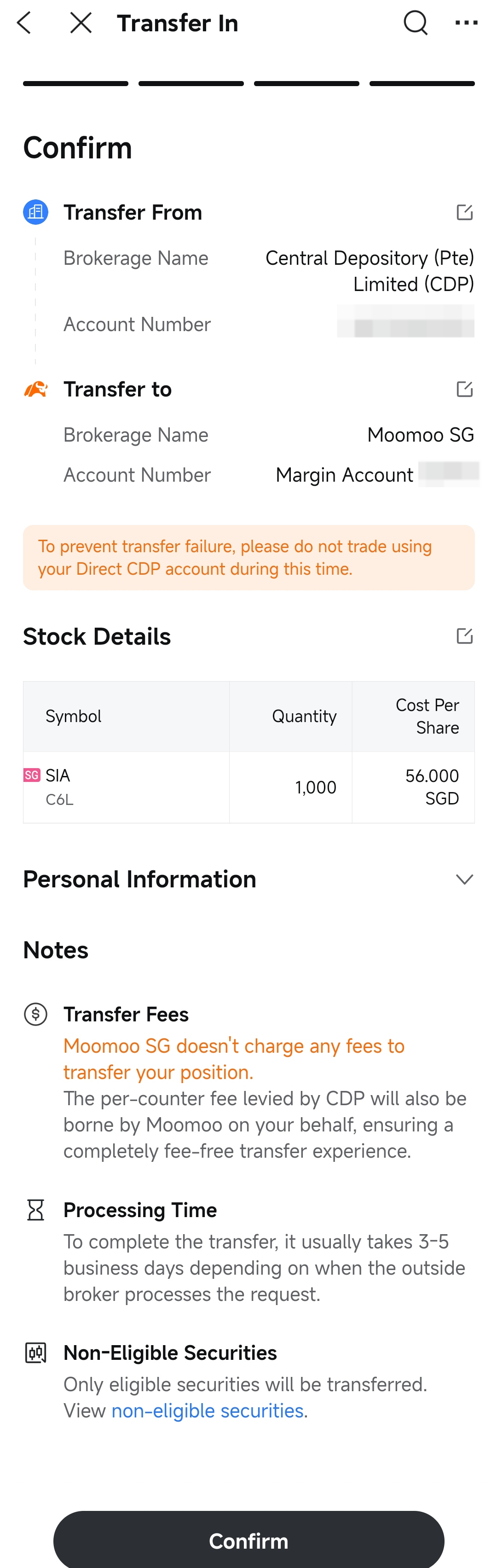
Step 6: Review and Sign
-
Review all information on the page:
-
Transfer From: Central Depository (Pte) Limited (CDP), and your CDP account number.
-
Transfer to: Moomoo Financial Singapore Pte. Ltd., and your account number.
-
Stock Details (Partial Transfer only): Symbol, Quantity, and Cost Per Share.
-
Personal Information: Your identity, address, and contact details.
-
Read through the Notes section regarding transfer fees and processing time.
-
Once verified, tap Confirm at the bottom of the page.
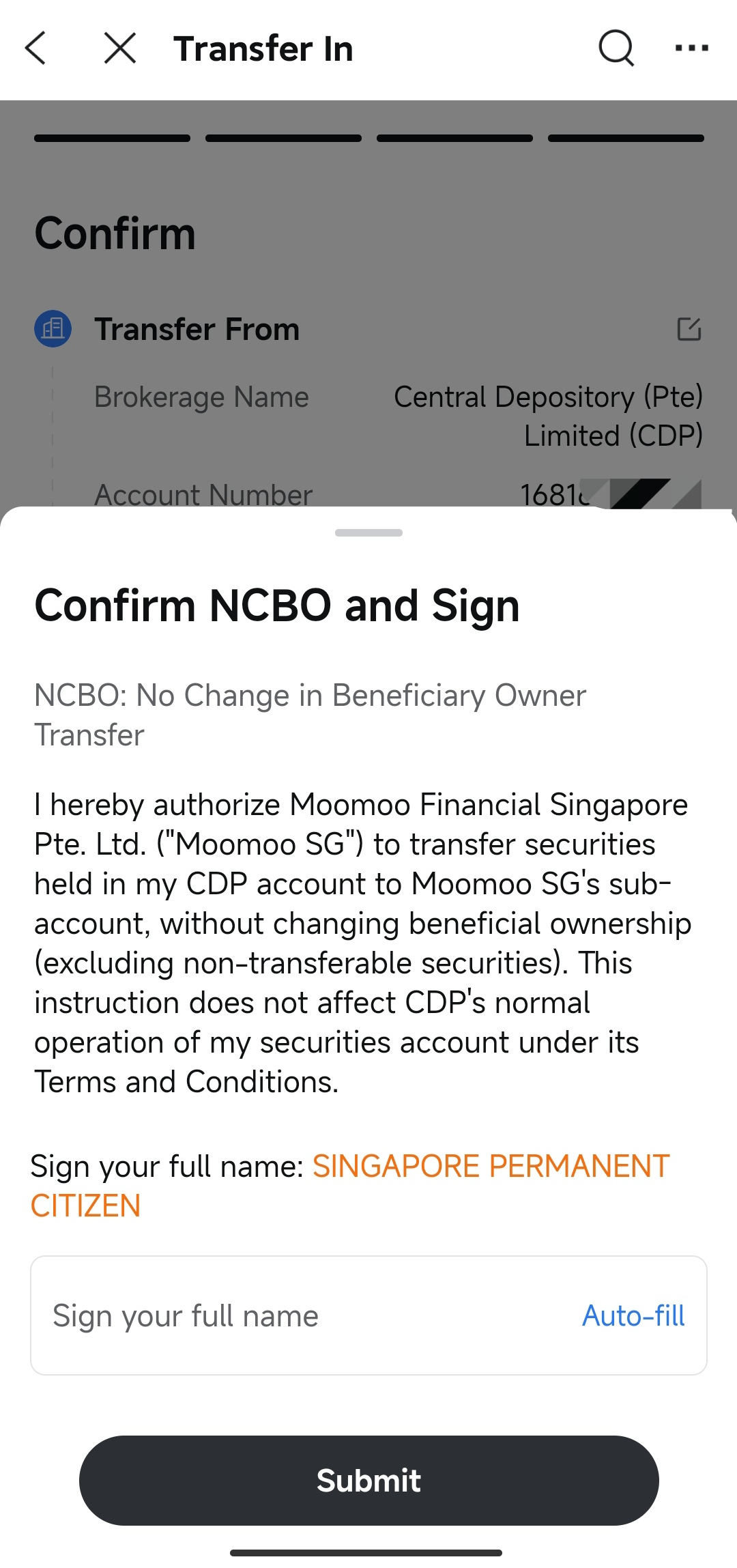
-
In the Confirm NCBO and Sign pop-up, sign electronically by entering your full name.
-
Tap Submit to complete your transfer request.
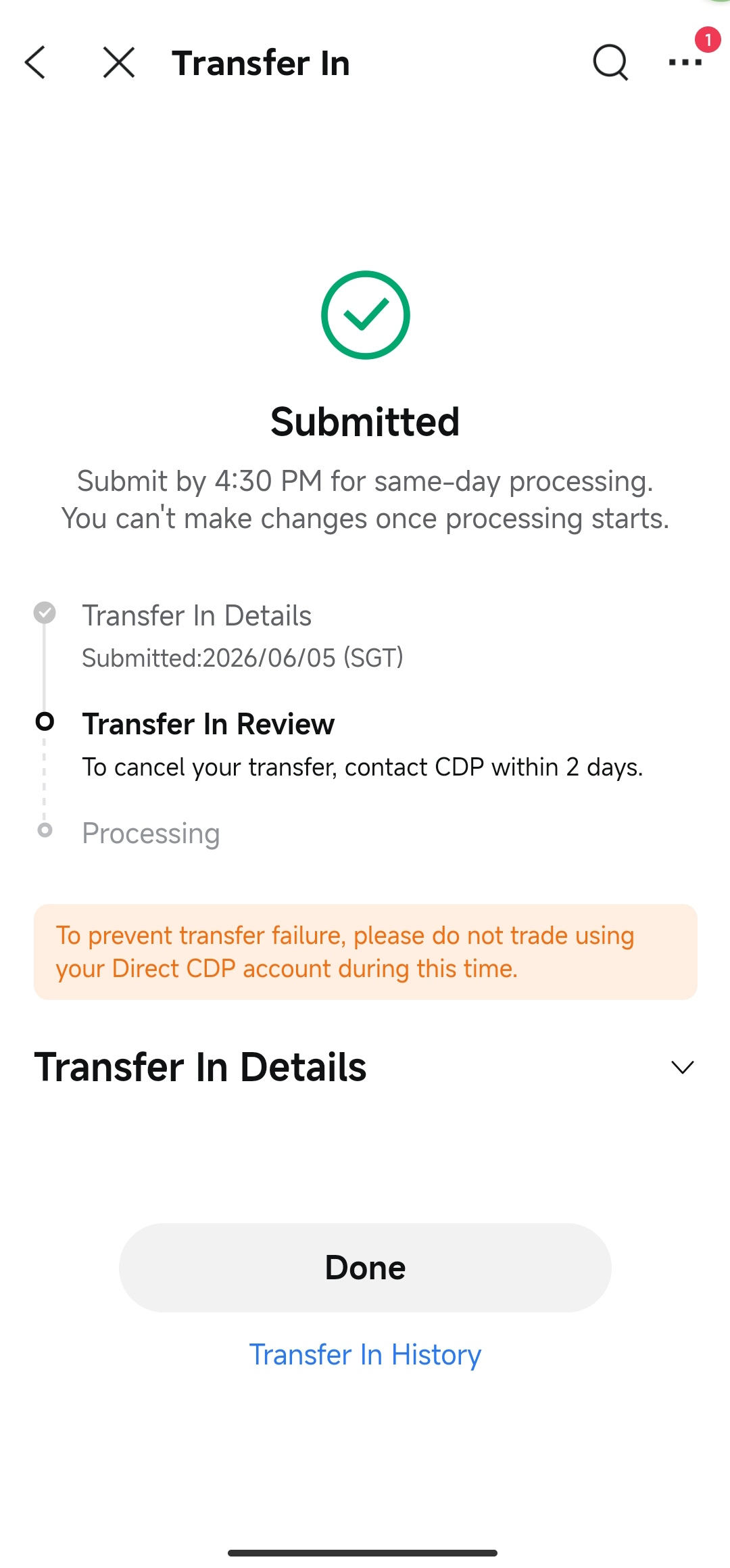
Step 7: Wait for Processing
After submitting, you'll see the following timeline:
|
Timeline
|
What Happens
|
|
T (Submission Day)
|
Requests submitted before 4:30 PM begin processing the same day. Requests after 4:30 PM begin the next business day.
|
|
T+1
|
CDP will notify you via SMS/email to confirm the transfer.
|
|
T+2 (by 5:00 PM)
|
Cooling-off period ends. Contact CDP before this time if you need to cancel.
|
|
T+3
|
Transfer completes and assets appear in your moomoo account.
|
The entire process typically takes 3-5 business days.
How to Check Your Transfer Status
-
Open the moomoo app and go to Accounts > More > Transfer Stock In.
-
Tap Transfer In History at the bottom of the page.
-
Tap a specific record to view its detailed status and progress.
Eligible and Ineligible Securities
Eligible Securities:
-
Ordinary shares listed on SGX Mainboard
-
SGX-listed ETFs
-
REITs (Real Estate Investment Trusts)
-
Preference shares (with an available balance in your CDP account)
Ineligible securities
|
Security Type
|
Full Transfer
|
Partial Transfer
|
|
Singapore Savings Bonds
|
Not Eligible
|
Not Eligible
|
|
Frozen / Moratorium Shares
|
Not Eligible
|
Not Eligible
|
|
Suspended Counters
|
Not Eligible
|
Not Eligible
|
|
Delisted Counters
|
Not Eligible
|
Not Eligible
|
|
Rights Shares
|
Not Eligible
|
Partially Eligible*
|
|
Non-Renounceable Rights
|
Not Eligible
|
Not Eligible
|
|
Unlisted Equities
|
Not Eligible
|
Not Eligible
|
*Non-renounceable rights are not eligible for transfer.
Notes
-
Same-name accounts: You can only transfer stocks between accounts in your own name. Third-party transfers are not allowed.
-
Daily cutoff: Requests submitted before 4:30 PM will be processed the same day. Requests after 4:30 PM will begin processing the next business day.
-
Processing time: A CDP Digital Transfer typically takes 3-5 business days to complete.
-
Changes after submission: Once your request is "Processing," you cannot modify or cancel it.
-
Trading restrictions: After submission, do not trade the stocks being transferred in your CDP Direct Account, as this may cause the transfer to fail.
-
One request at a time: You can only have one pending CDP transfer at a time (either Digital Transfer or Form Transfer).
-
Cooling-off period: CDP will notify you on the second business day to confirm. You have 2 days after receiving the notification to cancel by contacting CDP. After that, the transfer will proceed automatically.
-
Post-Transfer Notice: After the transfer is completed, please trade your transferred assets via your Moomoo account only. Do not trade through your CDP account to avoid short selling due to insufficient holdings.
FAQs
Q: What is the difference between CDP Digital Transfer and CDP Form Transfer?
A: CDP Digital Transfer is fully digital: no forms to print, no ID photos to upload, and no manual email follow-ups. It has a higher success rate and faster processing than Form Transfer. Both options are available in the app.
Q: What types of assets can I transfer in?
A: You can transfer any listed stocks, ETFs, and REITs that are tradable on Moomoo SG. Ineligible assets include Singapore Savings Bonds, frozen stocks, suspended or delisted stocks, and short positions.
Q: If I choose Full Transfer, will all my stocks be transferred?
A: No. Only eligible securities will be transferred. Ineligible securities (such as Singapore Savings Bonds and suspended stocks) are automatically excluded.
Q: Why does CDP send me a confirmation?
A: This is CDP's security mechanism (similar to a cooling-off period). After the transfer is initiated, CDP will notify you via SMS/email. You have 2 days after receiving the notification to cancel the transfer by contacting CDP. After the cooling-off period, the transfer proceeds automatically.
Q: How long does the transfer take?
A: CDP Digital Transfer typically takes 3-5 business days. Requests submitted before 4:30 PM begin processing the same day, while those submitted after 4:30 PM will be processed the next business day.
Q: Can I submit multiple CDP transfer requests at the same time?
A: No. You can only have one pending CDP transfer at a time (either Digital Transfer or Form Transfer) to prevent conflicts. To modify your current request, please go to Transfer In History to view or cancel it.
Q: Are there any transfer fees?
A: Moomoo SG does not charge any transfer-in fees. We also cover any fees charged by CDP, so your transfer is completely free.
Q: What do I need to do to complete the transfer?
A: With CDP Digital Transfer, simply submit your request in the moomoo app. No additional action is needed on the CDP platform. CDP will notify you to confirm, and if you don't cancel during the cooling-off period, the transfer will complete automatically.
Q: Can I cancel my transfer? A: Yes. While the status is "Pending," you can cancel it directly in the moomoo app. Once it changes to "Processing," you can no longer cancel via the app, but you can still contact CDP to cancel within the 2-day cooling-off period after they notify you.
Note: Screenshots are for reference only. Actual screens may differ due to app updates.