



Alibaba
BABA
Amazon
AMZN
Disney
DIS
4
Netflix
NFLX
5
Alphabet-C
GOOG
You can export orders and trades as CSV files on the desktop version for reconciliation, tax filing, or archiving.
Desktop version: Go to Accounts > select an account > Positions, Orders, or History, then click the Export icon in the top-right corner.
Moomoo Legacy: Go to Trade > Toolbox > select an asset class > History, then click the Export icon in the top-right corner.
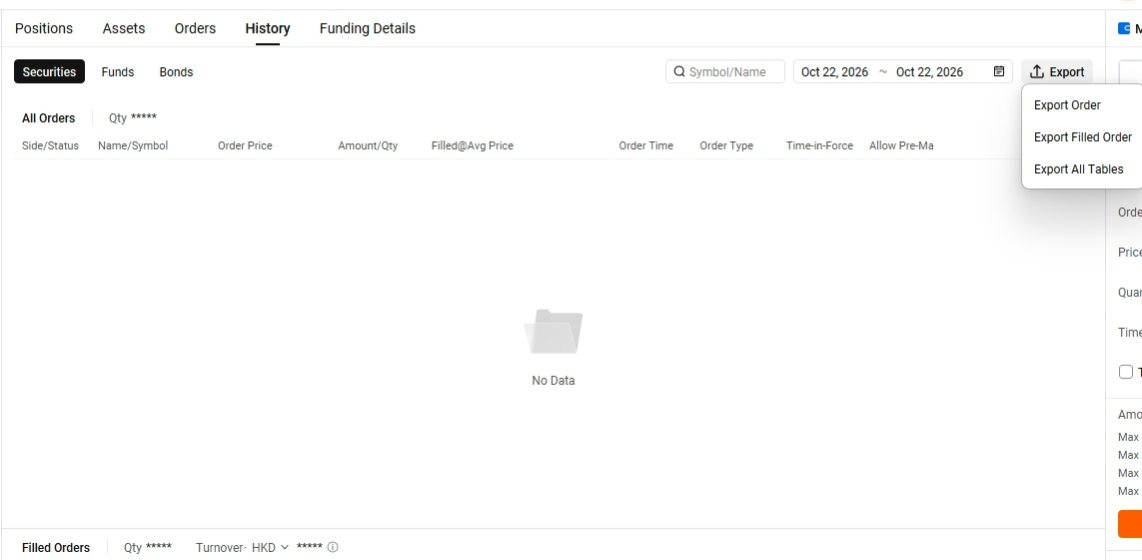
The exported data matches the filters applied to the current page (such as market and time range). Set your filters before exporting.
In the pop-up, choose what to export: Orders, Trades, or All Tables (orders and trades).
The mobile app doesn't currently support exporting orders and trades. Please export from the desktop version.
No. Orders and trades are saved as two separate CSV files.
Update your desktop app to the latest version, then try again.