Sample Name
Sample Code
Sample Name
Sample Code
Sample Name
Sample Code
4
CIMB
1023
5
AMBANK
1015
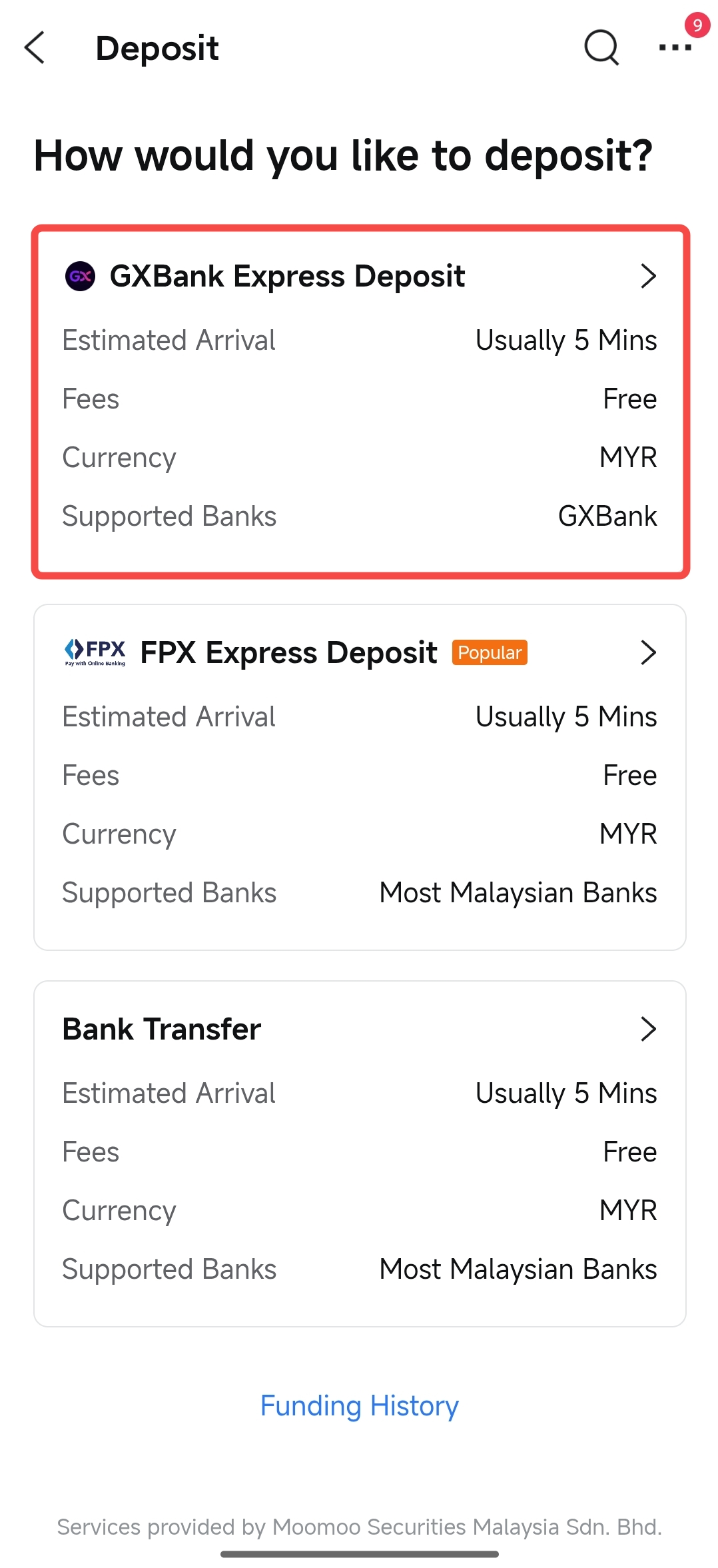
GXBank Express Deposit is a convenient deposit method that connects the moomoo app with the GXBank mobile App, allowing you to transfer funds from your GXBank account to your Moomoo MY Universal Account.
|
Processing Time |
Typically within 5 minutes |
|
Fees |
No fees charged by Moomoo MY (your bank may charge transfer fees) |
|
Supported Currency |
Malaysian Ringgit (MYR) |
|
Supported Banks |
Malaysia GXBank |
|
Transfer Limit |
A transfer limit of RM30,000 per transaction applies. |
2.1.1 Acceptable Transfer Methods:
• GXBank transfers originating from accounts solely owned by the account holder are acceptable.
2.1.2 The following transfer methods are not accepted:
• GXBank joint account transfers are not supported.
• Transfers from bank accounts not owned by the account holder (third-party deposits) are not accepted.
Only supported transfers from GXBank in Malaysia.
Currently, only the transfer of Malaysian Ringgit (MYR) is supported.
Moomoo MY limits a single transaction to a maximum of RM30,000. The limit is also subject to the transfer limit that you set with your bank account.
Before you get started, please ensure:
(1) Use the moomoo app: Please ensure you initiate and confirm account linking through the moomoo app. This can't be done on a PC, or apps other than moomoo.
(2) Install both apps: Ensure both moomoo and GXBank apps are installed and logged into your personal accounts on the same device.
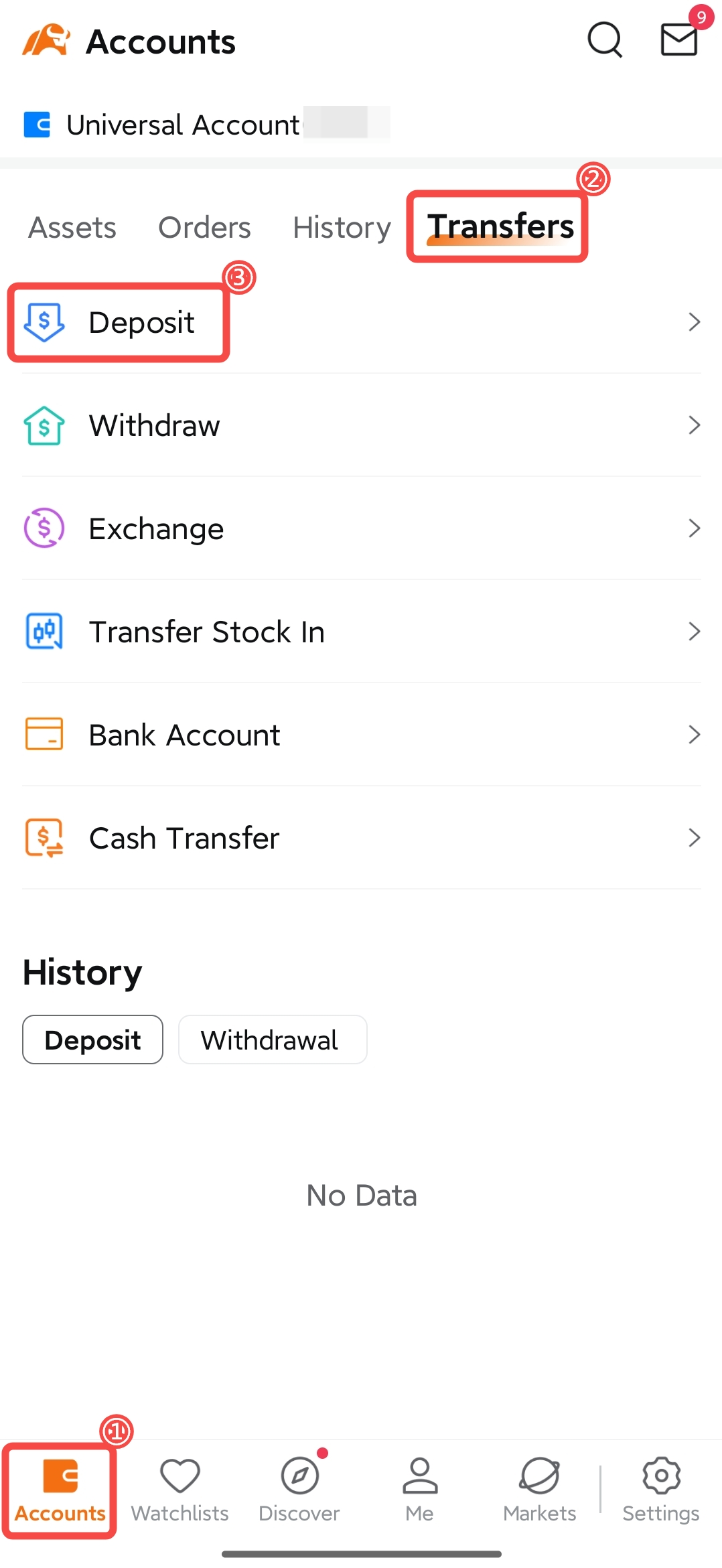
3.1.1 Access GXBank Express Deposit Page in the moomoo App
Open the moomoo APP and navigate to Accounts > Transfers > Deposit > GXBank Express Deposit.
 |
 |
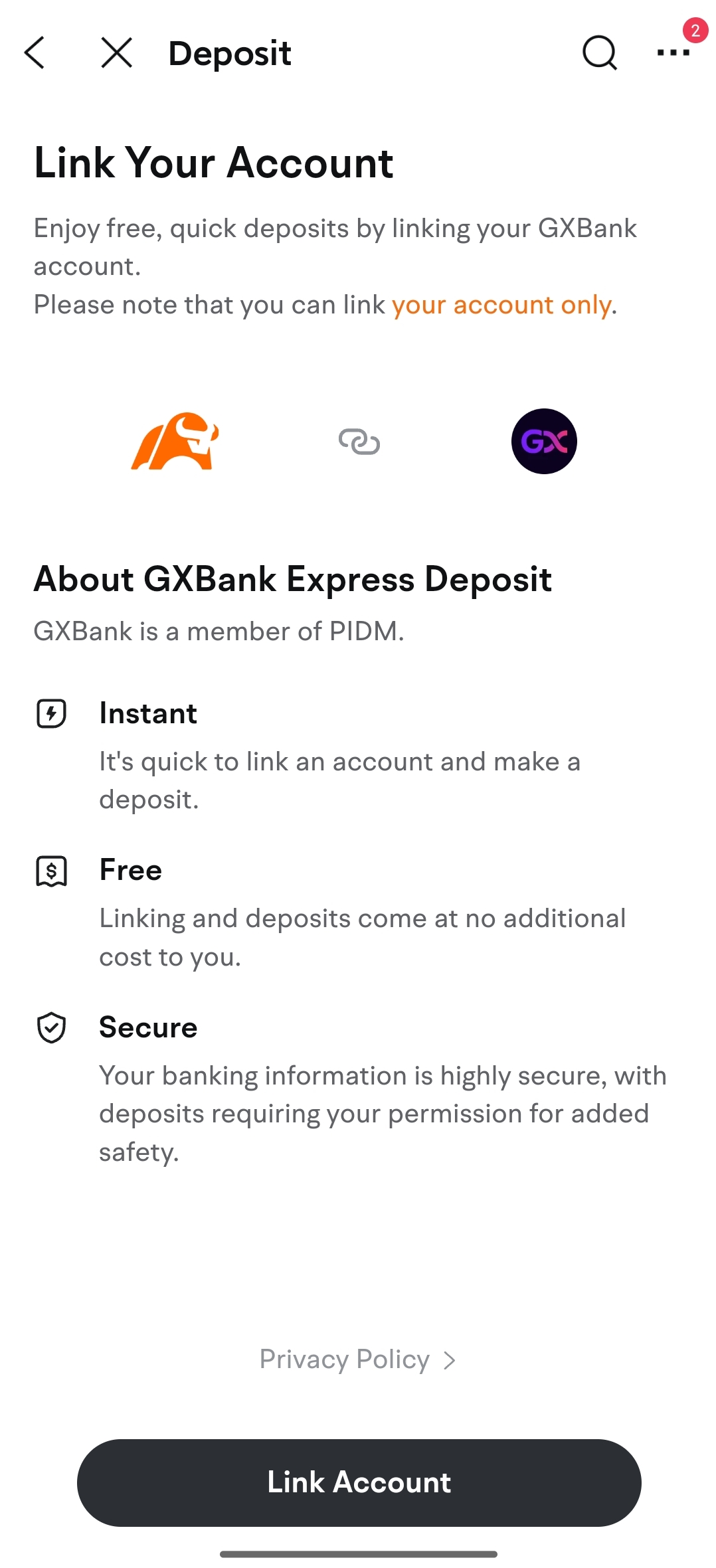
3.1.2 Link Your GXBank Account
① Tap "Link Account", you will be redirected to the GXBank app.
② After account linking in the GXBank app, tap Back to Merchant to ensure the account linking process completes successfully. Do not exit the GXBank app or switch to the moomoo app manually, as this may result in failed authorisation.
Reminder: Complete the account linking process promptly to avoid a timeout.
3.1.3 Confirm and Tap "Back to Merchant" to Complete Account Linking Process
After account linking in the GXBank app, tap "Back to Merchant" button to ensure the account linking process completes successfully. Do not exit the GXBank app or switch to the moomoo App manually, as this may result in failed authorisation.
Before initiating a GXBank deposit, please ensure that your GXBank account has been authorised.
Step ① Go to the moomoo App, tap "Accounts – Transfers – Deposit – GXBank Express Deposit".
Step ② Enter the deposit amount as prompted and tap "Submit". You will be redirected to the GXBank App to confirm the transfer.
Step ③ Once you confirm the transfer in the GXBank App, your funds are expected to be credited to your Moomoo MY universal account within 5 minutes.
After successfully completing the remittance via GXBank, your funds will usually be credited to your Moomoo MY universal account within 5 minutes. Once the deposited funds are credited, you will receive a system message and email notification.
To check the status of your deposit in the moomoo App:
Go to Accounts > Transfers > Deposit > Funding History, or click here.