How to Link Moomoo to TradingView for Pro Charting
Key Takeaway
- Seamless Integration for U.S. Traders: Linking Moomoo to TradingView enables direct trade execution from advanced charts, ideal for navigating fast-paced U.S. markets.
- Streamlined Workflow: Combining platforms reduces switching between tools, saving time and minimizing errors during volatile trading sessions.
- Centralized Portfolio Management: Monitor account balances, positions, and order history in one dashboard, enhancing oversight of U.S. stocks and U.S. stock options (excluding ETFs)
- Simple 5-Step Setup: Connecting Moomoo to TradingView requires an active brokerage account, and completing the connection steps in TradingView; TradingView broker integration does not require a paid subscription plan as a prerequisite, and granting permissions for smooth operation.
- Seamless Integration for U.S. Traders: Linking Moomoo to TradingView enables direct trade execution from advanced charts, ideal for navigating fast-paced U.S. markets.
- Streamlined Workflow: Combining platforms reduces switching between tools, saving time and minimizing errors during volatile trading sessions.
- Centralized Portfolio Management: Monitor account balances, positions, and order history in one dashboard, enhancing oversight of U.S. stocks and U.S. stock options (excluding ETFs)
- Simple 5-Step Setup: Connecting Moomoo to TradingView requires an active brokerage account, and completing the connection steps in TradingView; TradingView broker integration does not require a paid subscription plan as a prerequisite, and granting permissions for smooth operation.
Moomoo is a comprehensive trading platform that has gained significant popularity in the U.S. market, known for its robust execution capabilities and competitive fee structure that appeals to American investors. TradingView stands as a premier charting and social networking tool for traders worldwide. This guide aims to provide U.S.-based traders with definitive instructions on integrating these two powerful platforms. By combining moomoo's excellent execution—including access to U.S. pre-market and after-hours trading—with TradingView's best-in-class analytics, investors can create a powerful, streamlined trading experience tailored to the fast-paced U.S. financial markets.
Note: The integration only supports trading U.S. stocks and U.S. stock options on TradingView for the time being.
Why Link Moomoo to TradingView? Key Benefits for U.S. Investors
Execute Trades Directly from Advanced Charts
With this integration, U.S. investors can leverage TradingView's sophisticated charting tools, indicators, and drawing features for in-depth analysis of NYSE and NASDAQ-listed U.S. stocks and U.S. stock options, then immediately execute trades through their moomoo account without ever leaving the chart. This seamless connection is particularly valuable for trading during volatile U.S. market sessions, when quick execution can make a significant difference in trade outcomes.
Streamline Your Trading Workflow and Save Time
The efficiency gained by eliminating the need to switch between platforms for analysis and execution is substantial. This unified workflow reduces errors and saves critical seconds in fast-moving U.S. markets, especially during major economic announcements or Federal Reserve policy updates when market conditions can change rapidly. American traders who actively monitor multiple U.S. sector rotations will particularly appreciate this streamlined approach.
Centralize Your Portfolio and Watchlist Management
The integration allows for viewing moomoo account balances, positions in U.S. equities, and order history directly within TradingView. This creates a single dashboard for monitoring all trading activity, including your investments in popular U.S. index funds and sector-specific holdings that make up a well-diversified American portfolio.
Prerequisites: What You Need Before Linking the Platforms
An Active Moomoo Financial Inc. Brokerage Account
A funded moomoo brokerage account is required for this integration. As of 2026, all standard U.S. moomoo accounts—including those enrolled in the cash sweep program that allows idle cash to earn interest while waiting for trading opportunities—are eligible for TradingView integration. U.S. residents will need to complete standard KYC verification in compliance with FINRA regulations.
Before conducting your first options trade using your moomoo account on TradingView, you need to complete the options trading level application.
New users on Moomoo can enjoy up to 8.1% APY on uninvested cash via Cash Sweep and receive free stocks according to their initial deposit tier.
No Mandatory TradingView Subscription Plan
Broker integration on TradingView does not require a paid subscription plan (Pro/Pro+/Premium); the free version of TradingView supports the connection with moomoo brokerage account for trading U.S. stocks and U.S. stock options.
How to Link Moomoo to TradingView: The 5-Step Process
Step 1: Navigate to the Trading Panel in TradingView
Look for the "Trading Panel" tab at the bottom of the TradingView chart interface. It's typically located alongside other panels like "Indicators" and "Alerts." This panel serves as your gateway to connecting with supported brokers including moomoo.
Step 2: Select Moomoo from the List of Broker Partners
Find "Moomoo" in the list of available brokers. You can use the search function if needed. Once located, click the "Connect" button next to the moomoo logo to initiate the connection process.
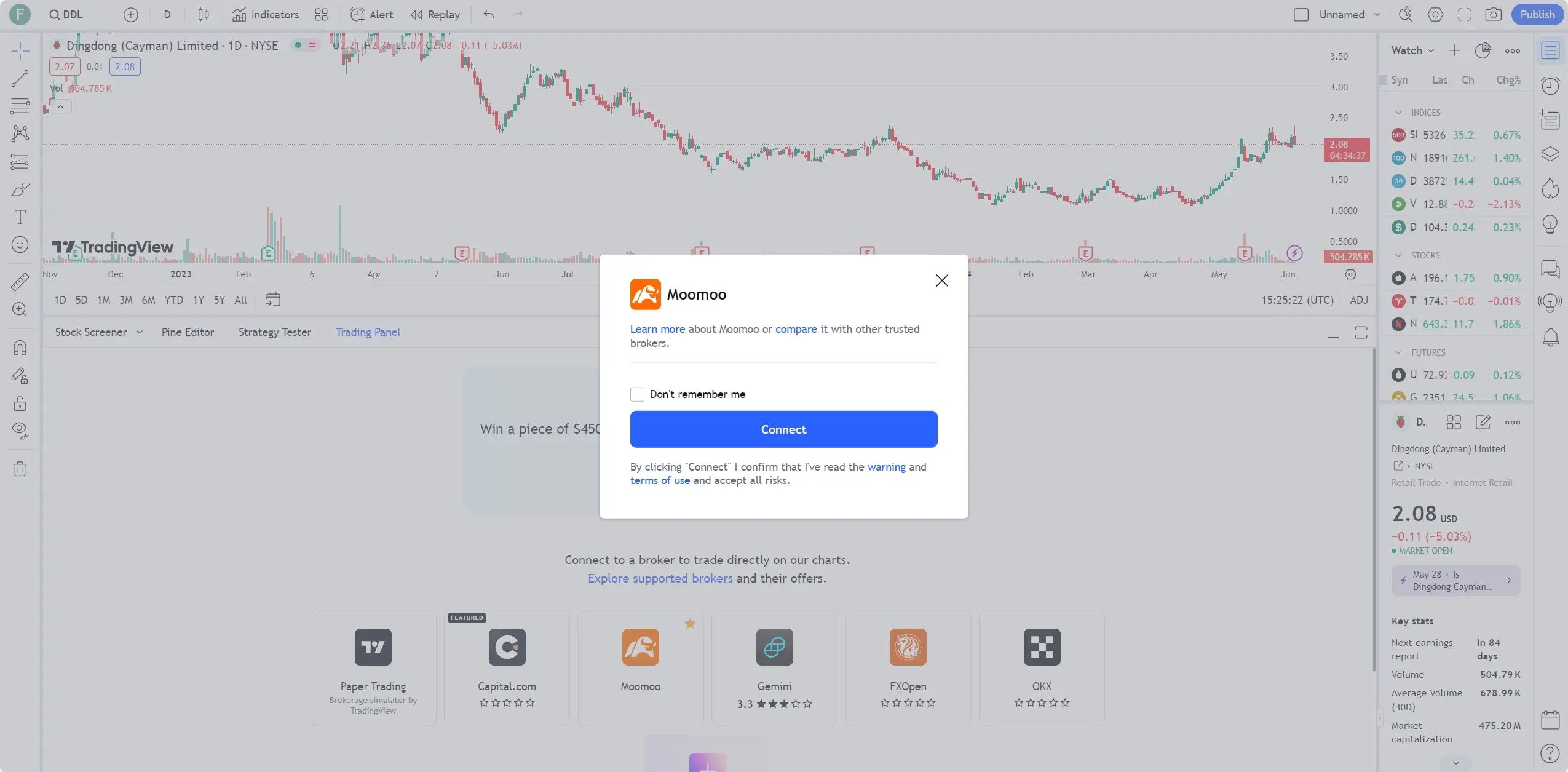
Step 3: Grant TradingView the Necessary Permissions
TradingView will request permissions such as viewing account data and placing orders on your behalf. Each permission is essential for the integration to function correctly. For U.S. traders, this includes access to place orders during extended hours trading sessions, a key feature for reacting to after-hours earnings announcements from major American corporations.
Step 4: Confirm the Successful Integration and View Your Account
Once permissions are granted, look for the confirmation screen. Verify a successful connection by checking for a green status indicator next to the moomoo name in the Trading Panel. Your account balance, including any funds participating in moomoo's FDIC-insured cash sweep program, should now be visible.
How to Trade with Moomoo Directly on TradingView
Using the Order Panel to Place Market and Limit Orders
The TradingView order panel allows you to set various order types and execute them through your linked moomoo account. U.S. traders can place orders for U.S. stocks and U.S. stock options on major U.S. exchanges directly from TradingView charts by following these steps:
Enter the symbol you'd like to trade.
Click Trading Panel.
Set up the order type, quantity, and other parameters.
Click Buy or Sell to confirm the order.
TradingView provides a feature called Instant Order Placement. Once enabled with a saved trading password, orders with valid parameters will be submitted immediately without confirmation—we advise you to use this feature with caution.
Managing Positions, Orders, and Account History
Access and manage your moomoo account’s open positions, pending orders, and trade history within the TradingView interface through the following dedicated tabs:

The Positions tab: Your current holdings are shown here.
The Orders tab: Check out the status of your orders here.
The History tab: Access all your order history here.
The Account Summary tab: Check out your assets and risk level here, and your account information (including assets and risk level) can be found in this section.
Advanced Trading: DOM Usage Restriction
For moomoo accounts with US stock LV2 market data access, they support trading US stocks through the Depth of Market (DOM) ladder for precise entries; however, US stock options do not support placing orders through DOM for the time being. Chart trading features can be used for U.S. stock trading operations on TradingView.
Moomoo Account Security on TradingView
For your account security, we advise you to update your moomoo login password and trading password regularly. You may log out of your moomoo account from the TradingView platform at any time to ensure the safety of your account and funds.
Deposit and Withdrawal Instructions
Currently, you cannot make a deposit or withdrawal directly through TradingView. If you'd like to make deposits or withdrawals, please visit the links below, or go to the moomoo mobile app:
Deposit - https://funding.us.moomoo.com/new-entrance/deposit
Withdraw - https://funding.us.moomoo.com/new-entrance/withdraw
Troubleshooting Common Moomoo and TradingView Connection Issues
If you encounter authentication failures, data lag, or order rejection, try simple fixes like re-authorizing the connection, clearing your browser cache, or verifying your moomoo account status. U.S. users should also ensure their moomoo account remains in good standing with sufficient buying power to meet FINRA's Regulation T requirements for margin accounts. Additionally, check that your API permissions within the moomoo account settings are properly configured to allow third-party connections.
If you fail to place an options order, first confirm that you have completed the options trading level application at https://option.us.moomoo.com/index.
Conclusion
Linking moomoo and TradingView creates a professional-grade trading environment that gives U.S. retail investors access to tools previously available only to institutional traders. The combination of moomoo's reliable execution—including their special offerings for U.S. clients like the moomoo x Mets partnership perks for New York-based investors—and TradingView's elite analytics creates a powerful platform for navigating American markets. Connect your accounts today to elevate your trading strategy and take full advantage of opportunities in the dynamic U.S. financial landscape.
FAQs about Linking Moomoo to TradingView
What are the requirements for linking Moomoo to TradingView?
To link Moomoo to TradingView, you need two core things. First, an active and funded Moomoo Financial Inc. brokerage account, which is available to U.S. residents who complete the necessary KYC verification. Second, a TradingView account (the free version is sufficient, and a paid subscription plan is not a mandatory requirement). Broker integration is supported on the free TradingView plan for moomoo connection.
How secure is the process of linking Moomoo to TradingView with my login details?
The connection process is highly secure. When you link the platforms, a secure authentication window prompts for your Moomoo credentials. This process uses OAuth 2.0, the same security standard employed by major U.S. financial institutions. This means TradingView receives a secure token to act on your behalf without ever storing your actual username and password, ensuring your account credentials remain protected.
After I link Moomoo to TradingView, can I trade U.S. stocks and options directly from the charts?
Yes, absolutely. Once you link Moomoo to TradingView, you can execute trades for U.S. stocks and options directly from TradingView's advanced charts. You can use the integrated Order Panel to place market, limit, and stop orders that execute through your Moomoo account. This allows you to perform in-depth analysis on NYSE and NASDAQ securities and trade immediately without switching platforms.
What are the common troubleshooting steps if the Moomoo and TradingView connection fails?
If you encounter issues when trying to link Moomoo to TradingView, start with these common fixes:
Re-authorize the connection by disconnecting and reconnecting Moomoo in the Trading Panel;
Clear your web browser's cache and cookies;
Verify that your moomoo account is active and funded, and if trading options, confirm the completion of options trading level application;
For U.S. traders, ensure your Moomoo account is in good standing with sufficient buying power to meet FINRA's Regulation T margin requirements;
Check your Moomoo account settings to confirm API permissions for third-party connections are enabled.
Can I link my Moomoo account to TradingView if I am not a U.S. investor?
This integration and guide are specifically tailored for U.S. investors using a Moomoo Financial Inc. account. The connection process is designed to comply with U.S. regulations, such as those from FINRA. While Moomoo operates in other countries, the availability of TradingView integration can vary by region. You should check the list of supported brokers in the TradingView Trading Panel for your specific location.
Does linking Moomoo to TradingView support extended hours trading for U.S. markets?
Yes, one of the key benefits of this integration for U.S. investors is the ability to conduct extended hours trading. When you authorize the connection, you grant TradingView permission to place orders on your behalf, which includes pre-market and after-hours sessions. This is particularly valuable for reacting to earnings announcements from major American corporations or other news that occurs outside of standard market hours.
Will my Moomoo account balance and positions automatically appear in TradingView after linking?
Yes. A successful integration will sync your Moomoo account data directly into the TradingView interface. Within the Trading Panel, you will be able to see your account balance, current open positions (U.S. stocks and U.S. stock options), and order history through dedicated tabs (Positions/Orders/History/Account Summary).
Can I make deposits or withdrawals directly on TradingView after linking the account?
No. Currently, you cannot make a deposit or withdrawal directly through TradingView. You need to complete deposit and withdrawal operations by visiting the moomoo dedicated links (Deposit: https://funding.us.moomoo.com/new-entrance/deposit; Withdraw: https://funding.us.moomoo.com/new-entrance/withdraw) or using the moomoo mobile app.
This presentation is for informational and educational use only and is not a recommendation or endorsement of any particular investment or investment strategy. Investment information provided in this content is general in nature, strictly for illustrative purposes, and may not be appropriate for all investors. Read more