This presentation is for informational and educational use only and is not a recommendation or endorsement of any particular investment or investment strategy. Investment information provided in this content is general in nature, strictly for illustrative purposes, and may not be appropriate for all investors. It is provided without respect to individual investors’ financial sophistication, financial situation, investment objectives, investing time horizon, or risk tolerance. You should consider the appropriateness of this information having regard to your relevant personal circumstances before making any investment decisions. Past investment performance does not indicate or guarantee future success. Returns will vary, and all investments carry risks, including loss of principal. Moomoo makes no representation or warranty as to its adequacy, completeness, accuracy or timeline for any particular purpose of the above content.
Moomoo is a financial information and trading app offered by Moomoo Technologies Inc.
In the U.S., investment products and services available through the moomoo app are offered by Moomoo Financial Inc., a broker-dealer registered with the U.S. Securities and Exchange Commission (SEC) and a member of Financial Industry Regulatory Authority (FINRA)/Securities Investor Protection Corporation (SIPC).
In Singapore, investment products and services available through the moomoo app are offered through Moomoo Financial Singapore Pte. Ltd. regulated by the Monetary Authority of Singapore (MAS). Moomoo Financial Singapore Pte. Ltd. is a Capital Markets Services Licence (License No. CMS101000) and Major Payment Institution License (License No. PS20200617) holder with the Exempt Financial Adviser Status. This advertisement has not been reviewed by the Monetary Authority of Singapore.
In Australia, financial products and services available through the moomoo app are provided by Moomoo Securities Australia Limited, an Australian Financial Services Licensee (AFSL No. 224663) regulated by the Australian Securities and Investment Commission (ASIC). Please read and understand our Financial Services Guide, Terms and Conditions, Privacy Policy and other disclosure documents which are available on our website https://www.moomoo.com/au.
In Canada, order-execution only services available through the moomoo app are provided by Moomoo Financial Canada Inc., regulated by the Canadian Investment Regulatory Organization (CIRO).
In Malaysia, investment products and services available through the moomoo app are offered through Moomoo Securities Malaysia Sdn. Bhd. ("Moomoo MY")regulated by the Securities Commission of Malaysia (SC). Moomoo Securities Malaysia Sdn. Bhd. is a Capital Markets Services Licence (License No. eCMSL/A0397/2024) holder. This advertisement has not been reviewed by the SC.
In New Zealand, financial products and services available through the moomoo app are provided by Moomoo Securities Australia Ltd (NZBN 942 905 240 2296) trading as Moomoo NZ, an Australian Financial Services licensee also registered with the FSPR to provide financial services in New Zealand (FSP 1008656). Please read and understand our Financial Services Disclosure Statement, Privacy Policy, Website Terms of Use, Collection Notice, Risk Disclosure Statement and other disclosure documents which are available on our website https://www.moomoo.com/nz
Moomoo Technologies Inc., Moomoo Financial Inc., Moomoo Financial Singapore Pte. Ltd., Moomoo Securities Australia Limited, Moomoo Financial Canada Inc., and Moomoo Securities Malaysia Sdn. Bhd. are affiliated companies.
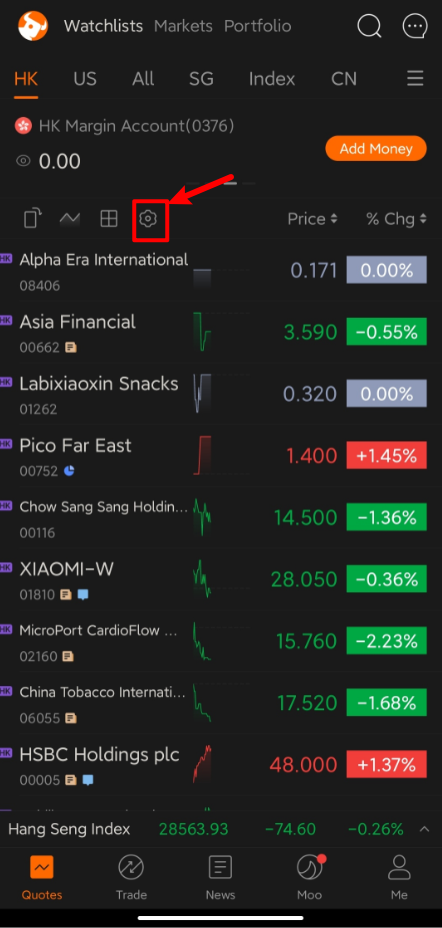
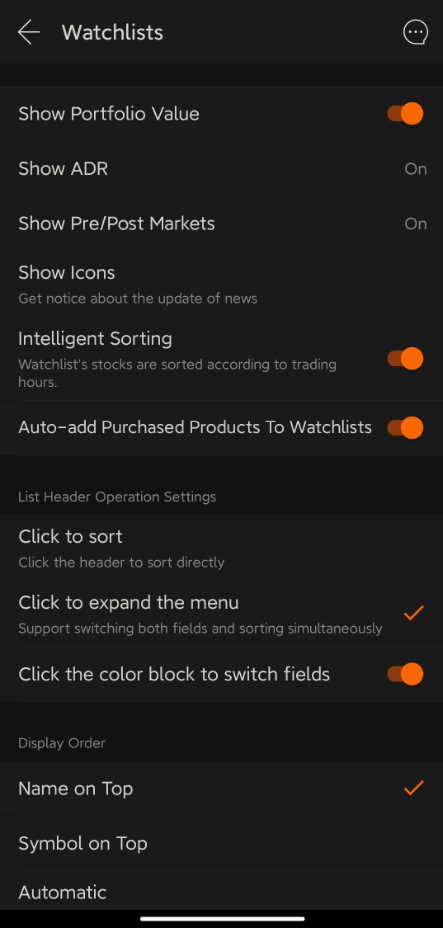
 Follow us for daily updates!