How to Use Options Screener
Options Screener is a highly efficient and reliable tool that allows investors to set a variety of filters and criteria, such as option type, expiration date, strike price, implied volatility, trading volume, open interest, and more. With Options Screener, you can easily and quickly sift through a vast array of option contracts to find the ones that meet your specific needs.
How to find Options Screener
Markets > Options > Options Tools > Options Screener.
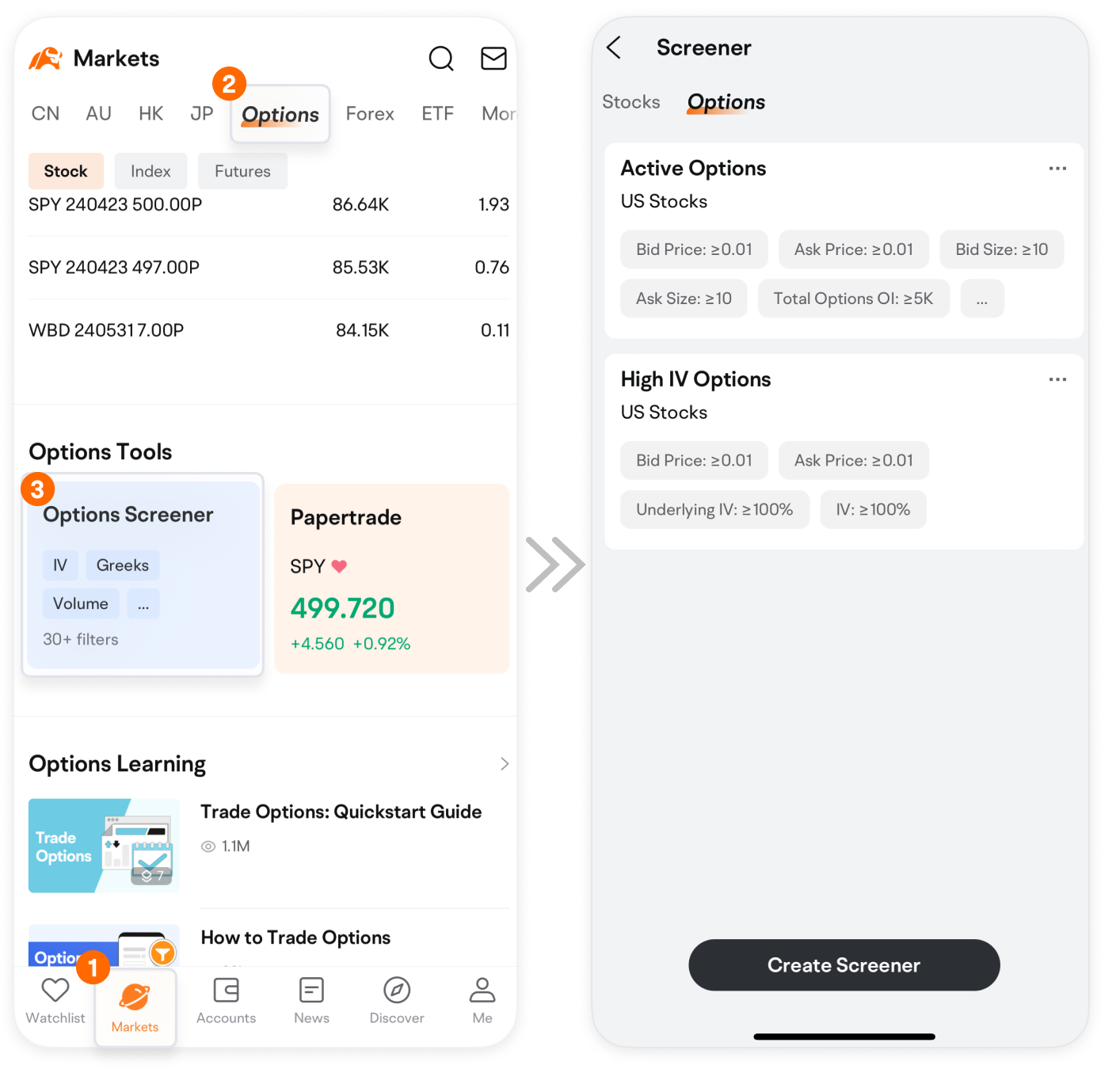
Alternatively, you can go to Markets > US/HK > Screener > Options.

How to use Options Screener
Currently, moomoo's Options Screener offers over 30 customizable filtering options to achieve rapid selection through custom values. Let's explain how it works with an example.
1. Create a new strategy
To start, click on Create Screener > US Stocks > Add Filters. You will find two tabs: one for the underlying stock and another for options, each with different filtering options.
On the underlying stock's page, you can filter based on indicators such as the stock's Implied Volatility (IV) and IV rank to find targets with high volatility.
If you opt for the options tab, you can filter based on the option's trading volume and other metrics to identify actively traded options in the market. Moreover, you can refine your search based on the option contract's expiration date, strike price, and implied volatility to find the contracts that best suit your needs.

Let’s walk through the filtering process with a specific example.
Suppose we want to trade options that are expiring soon. We need to quickly identify US stock options that are nearing their expiration date. This can be swiftly done using the options page filters.
Under the selection criteria, we locate "Days to Expiry" and set it to 0~1 day.
Next, if we want to keep our costs around $100, we can set the "Mid Price" filter to a range of 0~1 (since one contract typically covers 100 shares. Total Purchase Cost = Mid Price x 100).
After setting the above two options, option contracts that meet the criteria will be displayed. If the search results are too broad or too narrow, you can adjust the outcome by adding, removing, or altering some of the conditions.

2. View Results
Once you've set the filters, click on "Done" to see the filtered options list.
Swipe left in the list to view each option's volume, price updates, and changes.
Tap an option to access detailed data.
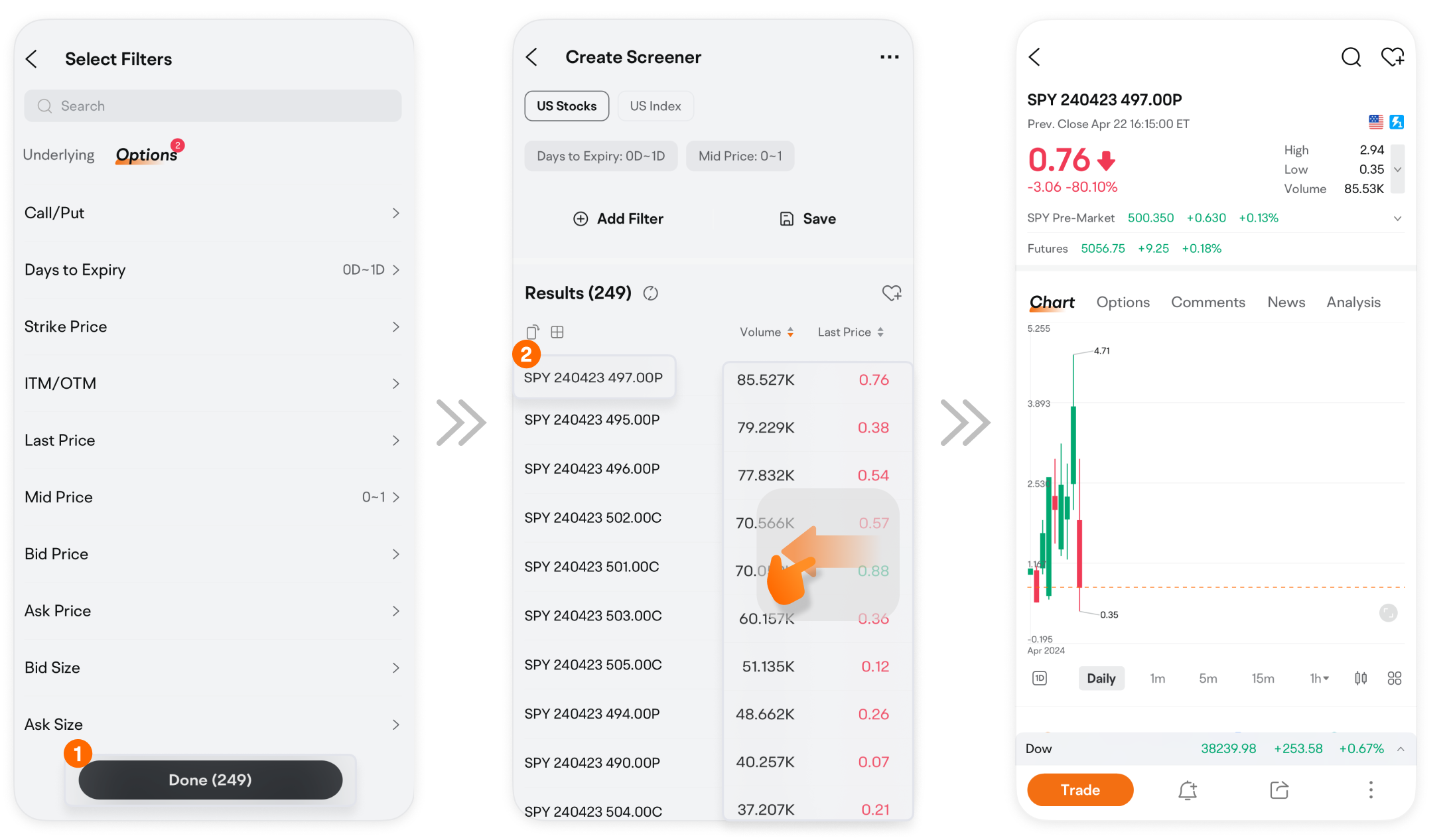
Use the "Multiple Charts Display" feature for analyzing multiple options' trends and metrics more clearly.

3. Add to Watchlist
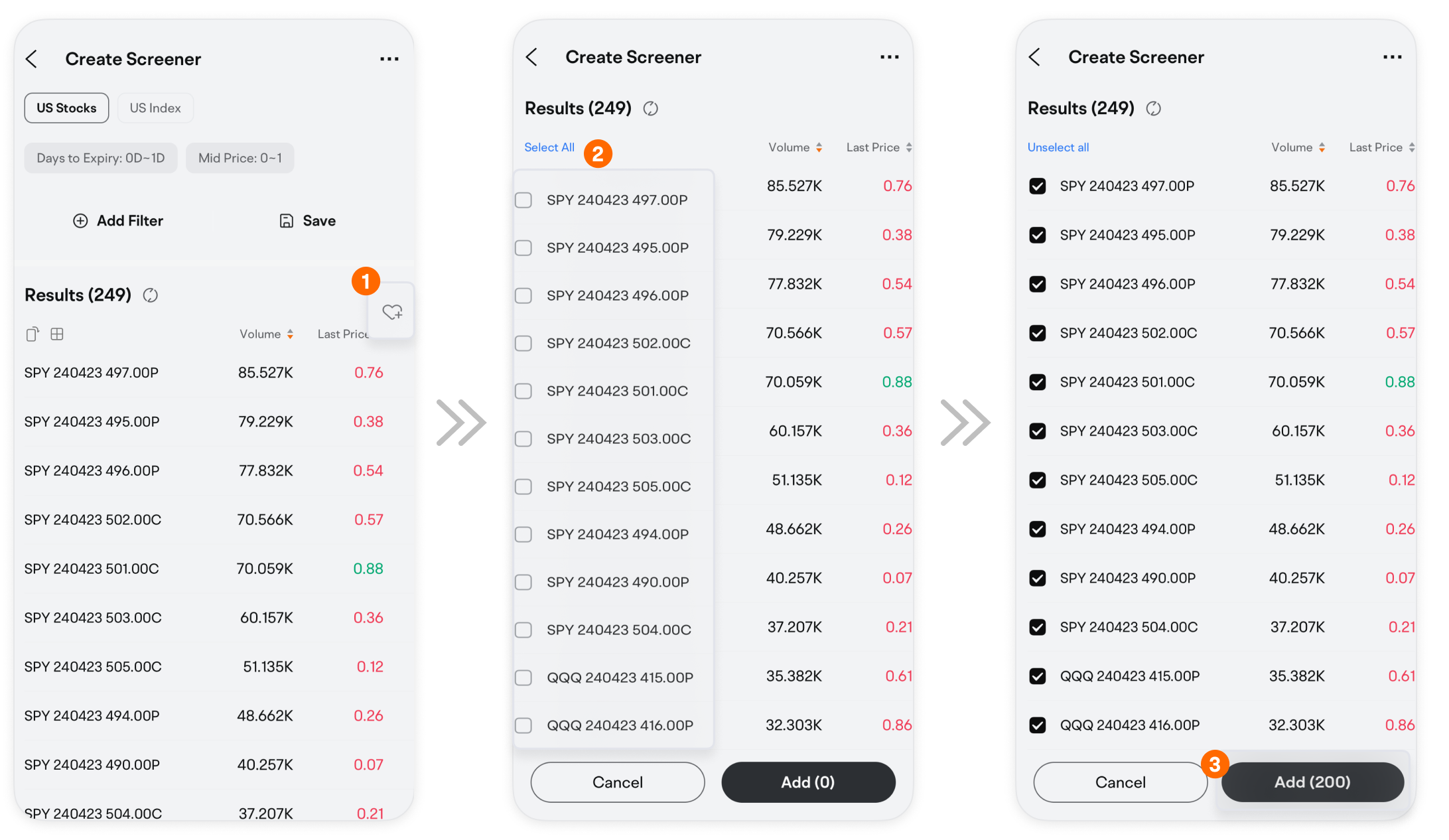
If you find options of interest during analysis, press the "heart" icon to add them individually or in bulk to your watchlist for later tracking.
4. Save Strategy
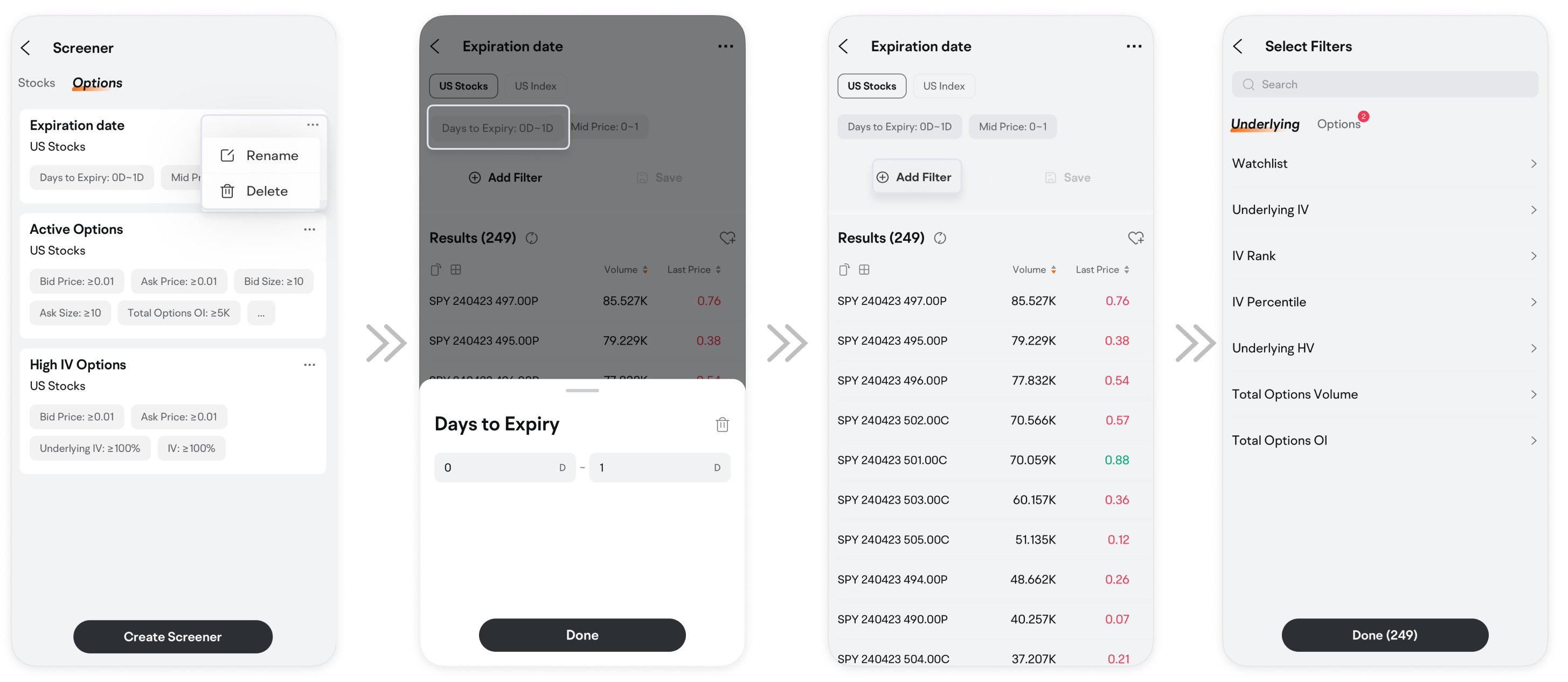
Click "Save" to store your filter setup as a fixed strategy for easy reuse.

5. Edit Strategy
For changes, click the "ellipsis" icon on the strategy in your list to rename or delete it. To modify a strategy, tap on existing selections to adjust values or add new conditions.
Explore more about options trading with Moomoo Learn!
This presentation is for informational and educational use only and is not a recommendation or endorsement of any particular investment or investment strategy. Investment information provided in this content is general in nature, strictly for illustrative purposes, and may not be appropriate for all investors. Read more
Recommend
How to Use Level 2 market data

How to Use Capital Tracking
How to Place A Bracket Order

How to Use Limit and Market Orders
How to Switch Trading Mode
How to Track Earnings Reports
How to Do Financial Analysis
How to trade with advanced order types?
How to Use Moomoo's Ticks Feature
How to Manage Watchlist
How to Use Basic Order Types
How to Use Stock Screener on moomoo?
Short Sale Analysis – Quickly Identify Market Sentiment
Customize Strategy - Pick Stocks in 4 Steps
How to Use Similar Charts
How to Use Position Cost Distribution
How to Use Heat List
How to Use Institutional Tracker
How to Use Heat Map
How to Interpret 15 Technical Indicators with 1 Feature
How to Custom Technical Indicators
How to Use Earnings Beat on moomoo
Free Real-Time Quotes: Have your Fingers on the Pulse of Short-Term Stock Prices
How to Use Short Sale Analysis
How to Paper Trade on moomoo
Evaluating Stocks with Candlestick Patterns
How to Use Options Screener
Financial analysis – Graphical presentation of data, business performance at a glance
How to Diversify Order Settings
How to Use Level 2 market data
How to Use Capital Tracking
How to Place A Bracket Order
How to Use Limit and Market Orders
How to Switch Trading Mode
How to Track Earnings Reports
How to Do Financial Analysis
How to trade with advanced order types?
How to Use Moomoo's Ticks Feature
How to Manage Watchlist
How to Use Basic Order Types
How to Use Stock Screener on moomoo?
Short Sale Analysis – Quickly Identify Market Sentiment
Customize Strategy - Pick Stocks in 4 Steps
How to Use Similar Charts
How to Use Position Cost Distribution
How to Use Heat List
How to Use Institutional Tracker
How to Use Heat Map
How to Interpret 15 Technical Indicators with 1 Feature
How to Custom Technical Indicators
How to Use Earnings Beat on moomoo
Free Real-Time Quotes: Have your Fingers on the Pulse of Short-Term Stock Prices
How to Use Short Sale Analysis
How to Paper Trade on moomoo
Evaluating Stocks with Candlestick Patterns
How to Use Options Screener
Financial analysis – Graphical presentation of data, business performance at a glance
How to Diversify Order Settings