



ASML Holding
ASML
Microsoft
MSFT
NVIDIA
NVDA
4
Taiwan Semiconductor
TSM
5
Cisco
CSCO
Before you begin:
● Assets eligible for transfer may vary depending on your receiving account type. For details, see Assets eligible for transfer.
● Transfer processing times may vary depending on your chosen transfer method. For details, see Stock transfer processing times.
To submit a transfer-in request in the moomoo app:
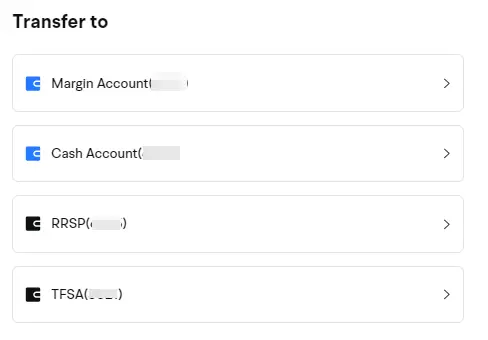
If you have multiple accounts with Moomoo Canada, please select the account you'd like to transfer assets to.
Note: If you are transferring assets into a registered account, your delivering account must be of the same type.
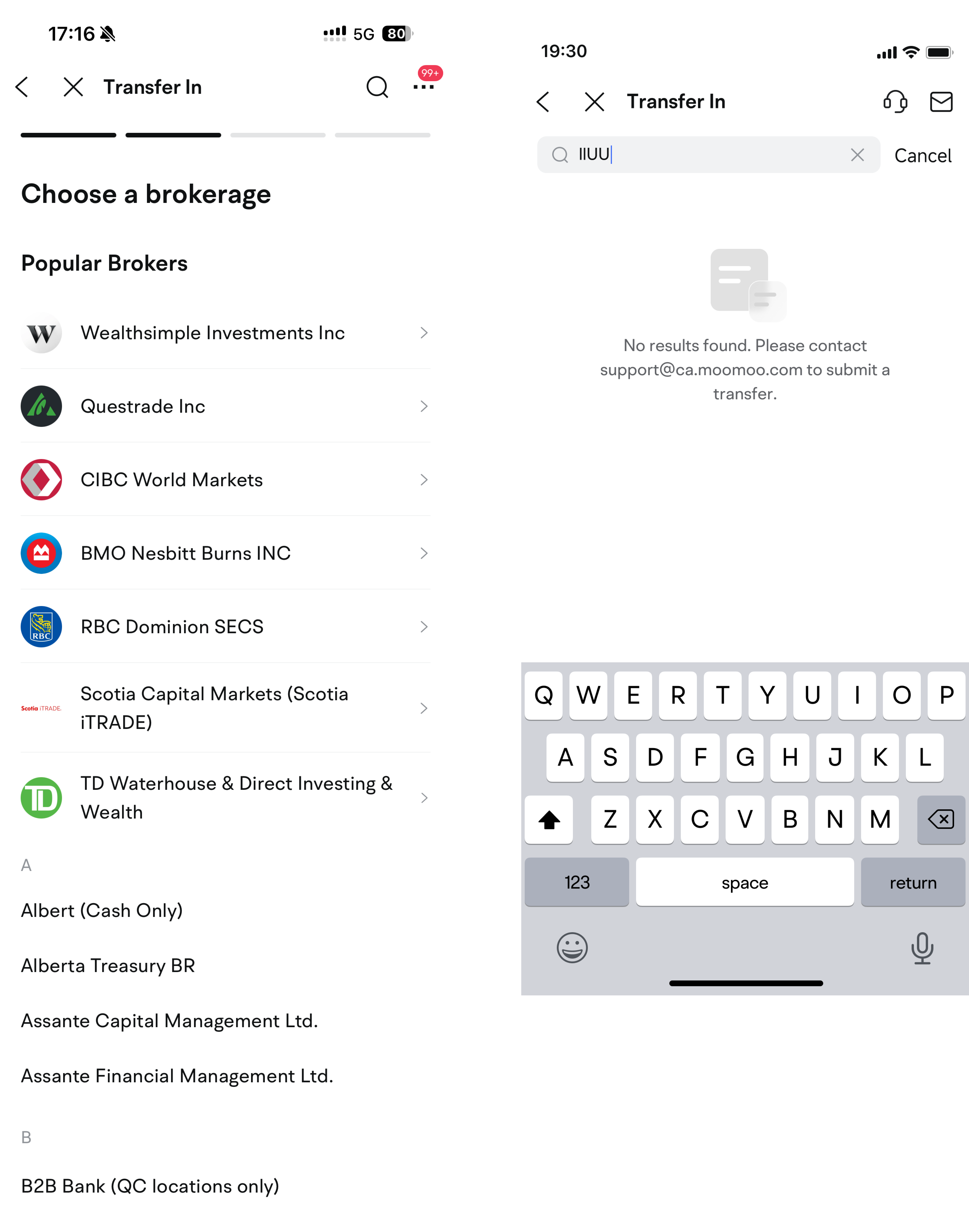
3.1 Select the delivering brokerage
Choose your brokerage from the list. If you don't find your brokerage, please contact support@ca.moomoo.com to submit your transfer-in request.
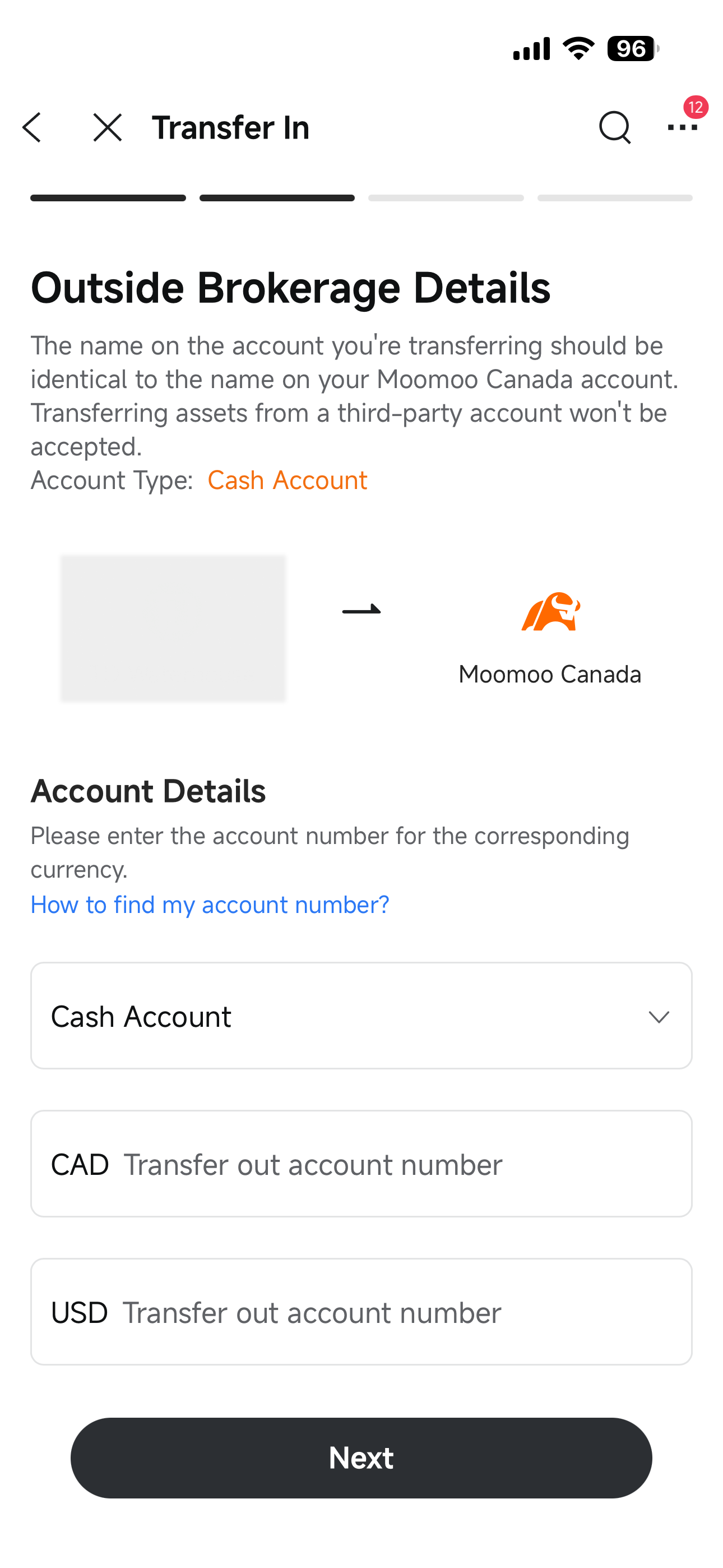
3.2 Enter your brokerage account number
Please ensure that your account number with the other brokerage is entered correctly.
The account type of the delivering account and the receiving account must be the same.
For example, if your receiving account is an RRSP, your delivering account must also be an RRSP.
If the other brokerage does not offer multi-currency accounts, please enter the corresponding single-currency account number for the assets being transferred.
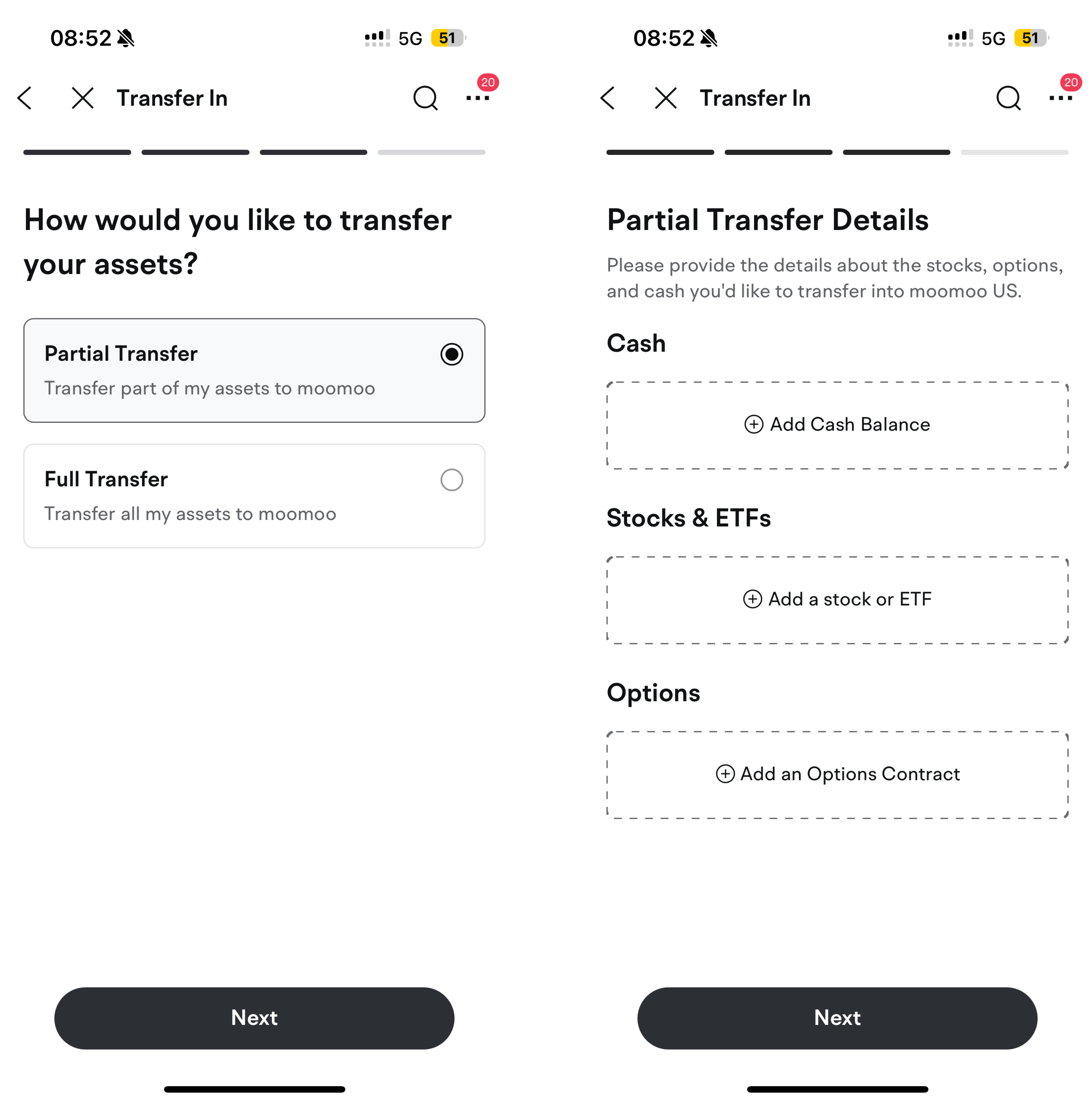
Choose the appropriate transfer type and fill in the required information as prompted on the page.
Ensure the brokerage, account number, and the account types for both the delivering and receiving accounts are the same. If there are any errors or missing information, you can return to previous steps to make corrections.
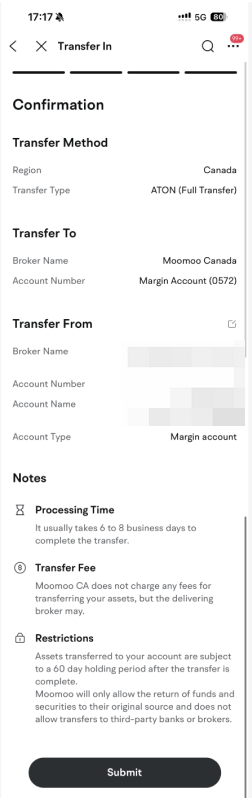
As the last step before submission:
● Sign your full name
● Enter your trading password to verify your identity

Please ensure that your statement includes your registered address, full name, and the quantity of stocks held.
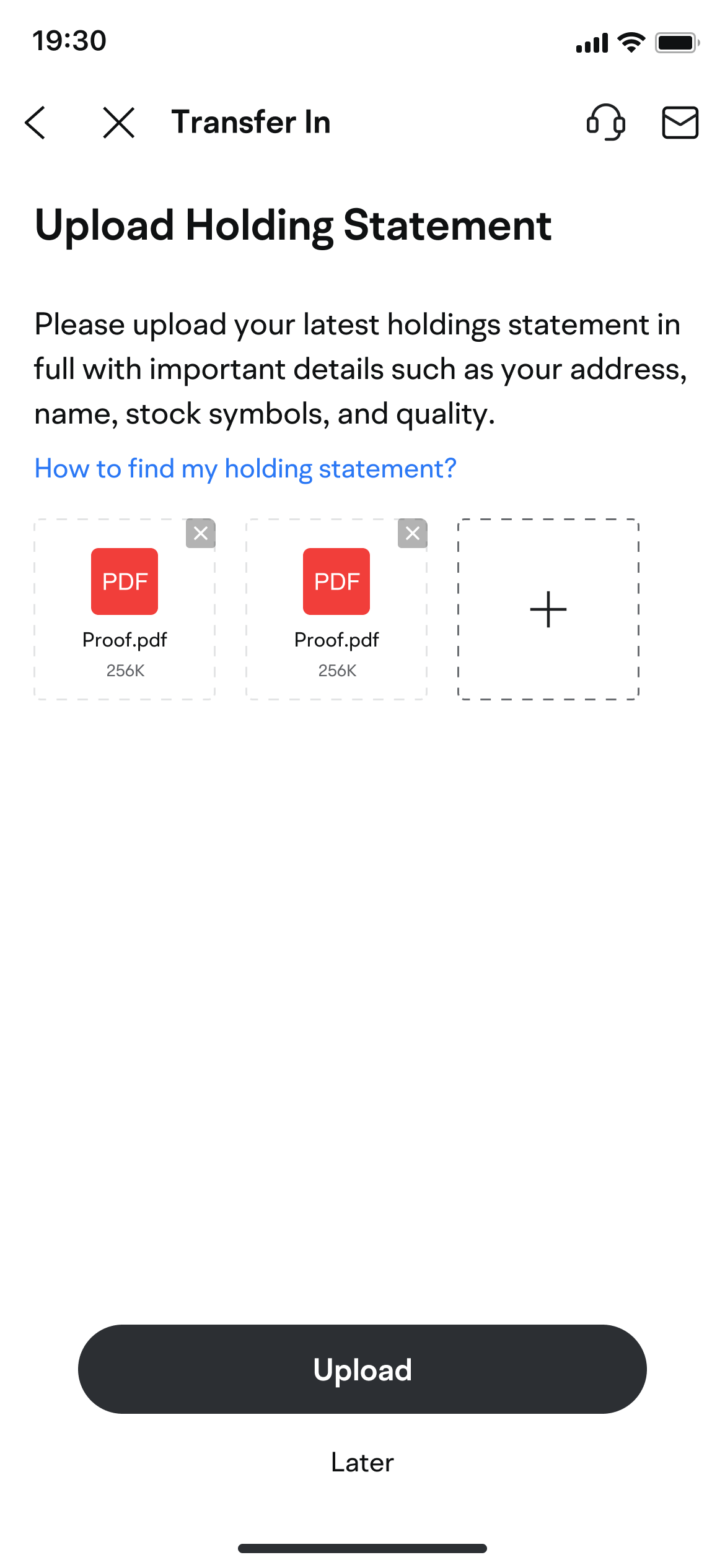
After completing the above steps, we will process your transfer-in request.
The instructions above are for reference only. Please refer to the actual page for required information.